
A practical use case for tracking promotions, transfers, demotions, internal mobility, and fast-track employees
Overview
Employee Career Progression Analysis helps HR and business teams understand how employees move within an organization over time. By comparing each employee's current designation and department with their previous career record, the organization can identify promotions, transfers, transfer promotions, demotions, and no-change movements.
The final output provides an employee-level view of career movement counts, current role details, average progression gap, and fast-track employee identification. These insights support workforce planning, succession planning, talent retention, leadership development, and internal mobility analysis.
Business Objective
The objective of this use case is to prepare a Smarten SSDP dataset that derives employee career movements from historical employee data and designation hierarchy information. The processed dataset should be ready for dashboards, reports, and HR analytics use cases.
When to Use This Analysis
- To monitor employee career growth across departments and designations.
- To measure promotion frequency and identify employees progressing faster than expected.
- To analyze internal mobility patterns across departments.
- To identify employees who may be suitable for succession planning or leadership programs.
- To identify career stagnation, demotion patterns, and role movement trends.
Source Data Required
This use case requires two datasets: Employee History and Designation Master. The Employee History dataset stores career events over time, while the Designation Master dataset defines the hierarchy level for each designation.
Dataset | Required Fields | Purpose |
Employee History | EmpID, Designation, Department, EffectiveDate | Stores employee career events and their effective dates. |
Designation Master | Designation, Level | Defines designation hierarchy so that role movement can be classified. |
Sample Employee History Data
Emp ID | Designation | Department | Effective Date |
E001 | Trainee | IT | 01-Jan-2020 |
E001 | Developer | IT | 01-Jan-2021 |
E001 | Sr Developer | IT | 01-Jan-2023 |
E001 | Team Lead | IT | 01-Jan-2025 |
E002 | Trainee | IT | 01-Jan-2019 |
E002 | Developer | IT | 01-Jan-2022 |
E002 | Sr Developer | IT | 01-Jan-2025 |
E003 | Executive | HR | 01-Feb-2020 |
E003 | Executive | Finance | 01-Feb-2022 |
E003 | Sr Executive | Finance | 01-Feb-2024 |
Sample Designation Master Data
Designation | Level |
Trainee / Associate | 1 |
Executive / Developer / Analyst | 2 |
Sr Executive / Sr Developer / Sr Analyst | 3 |
Team Lead / Lead Analyst | 4 |
Assistant Manager | 5 |
Manager | 6 |
Senior Manager | 7 |
AGM | 8 |
DGM | 9 |
GM | 10 |
Movement Classification Rules
Employee movement type is derived by comparing the current designation level and department with the previous designation level and department for the same employee.
Condition | Movement Type |
Current Level > Previous Level and Current Department = Previous Department | Promotion |
Current Level = Previous Level and Current Department <> Previous Department | Transfer |
Current Level > Previous Level and Current Department <> Previous Department | Transfer Promotion |
Current Level < Previous Level | Demotion |
Current Level = Previous Level and Current Department = Previous Department | No Change |
Expected Output
The output should provide an employee-level summarized career progression dataset. The latest designation and department should be shown along with movement counts and fast-track identification.
Emp ID | Current Department | Current Designation | Promotion Count | Transfer Count | Demotion Count | Avg Promotion Gap | Fast Track |
E001 | IT | Team Lead | 3 | 0 | 0 | 1.67 | Yes |
E002 | IT | Sr Developer | 2 | 0 | 0 | 3.00 | No |
E003 | Finance | Sr Executive | 1 | 1 | 0 | 2.00 | Yes |
Note: The fast-track threshold should be finalized based on the organization's HR policy. In this example, employees with an average progression gap of approximately two years or less are considered fast-track employees.
Implementation in Smarten SSDP
The following steps explain how to prepare the employee career progression dataset in Smarten SSDP.
Step 1: Create the Employee History Dataset
Load the Employee History data into SSDP. Each record represents an employee's designation and department as of a specific effective date.
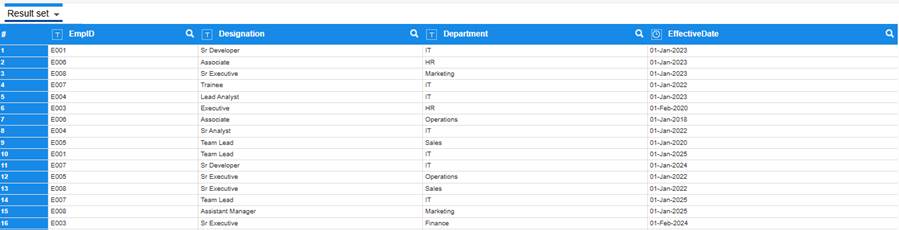
Figure 1.1: Employee History Dataset
Step 2: Create the Designation Master Dataset
Load the Designation Master dataset. This dataset maps each designation to a hierarchy level, which is required to compare career movements.
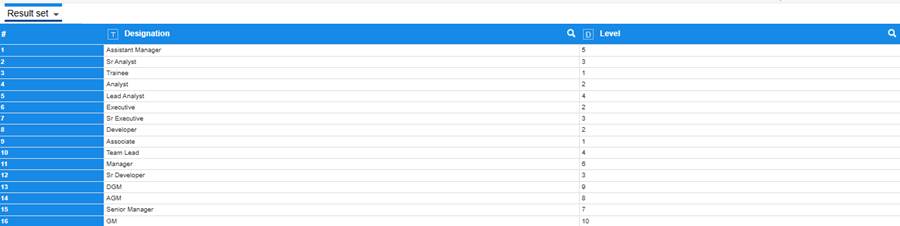
Figure 2.1: Designation Master Dataset
Step 3: Join Employee History with Designation Master
Join Employee History with Designation Master using the Designation column. A left join should be used so that all employee history records are retained while the corresponding designation level is added from the master dataset.
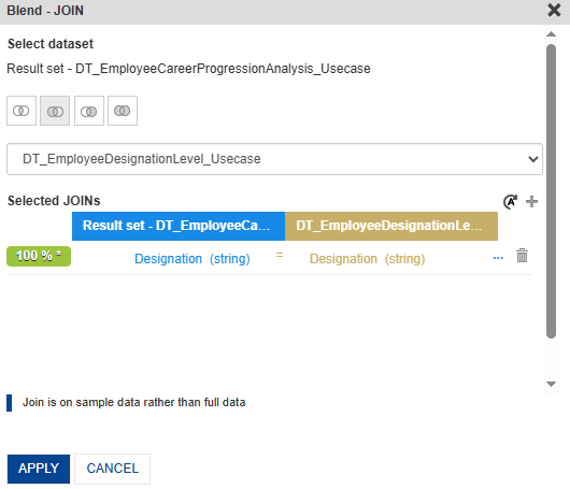
Figure 3.1: Joining Employee History with Designation Master
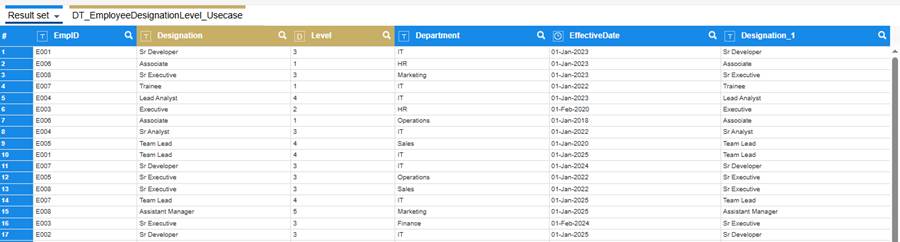
Figure 3.2: Employee History After Adding Designation Level
Step 4: Generate Sequence Numbers for Each Employee
Generate a sequence number to identify the chronological order of career records for each employee. Group by EmpID and order by EffectiveDate in ascending order.
- Right-click the dataset and select Add Column.
- Select Custom.
- Select Data Operations.
- Choose Row Number.
- Select EmpID in Group By.
- Select EffectiveDate in Order By with ascending order.
- Provide the output column name as SequenceNo and click OK.
|
|
Figure 4.1: Selecting Add Column | Figure 4.2: Creating Sequence Number |
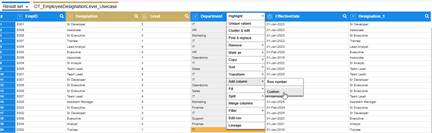
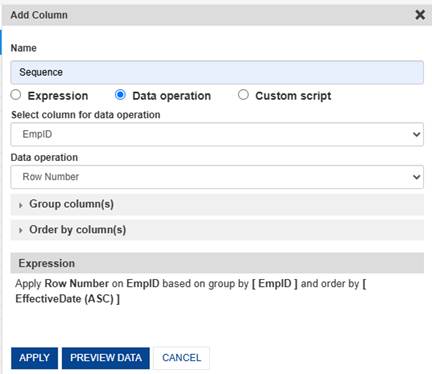
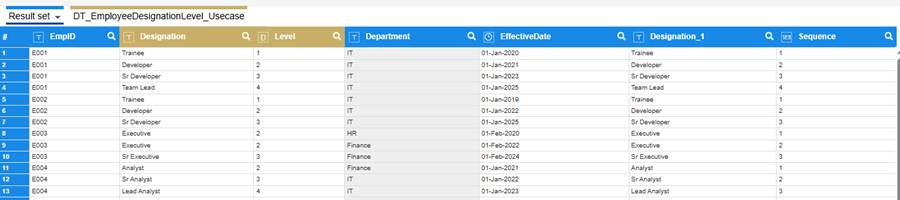
Figure 4.3: Employee History After Sequence Generation
Step 5: Derive Previous Sequence Number
Create a PrevSequence column to identify the previous career event for each employee. This column is used during the self-join to compare the current record with the previous record.
PrevSequence = SequenceNo - 1
|
|
Figure 5.1: Add Custom Column | Figure 5.2: PrevSequence Expression |
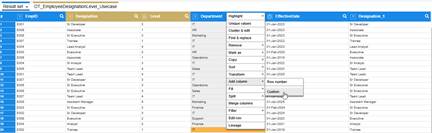
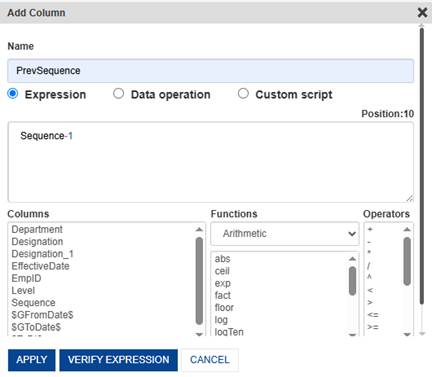
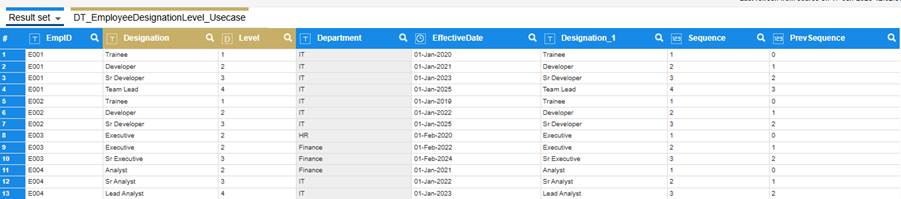
Figure 5.3: Employee History After PrevSequence Generation
Step 6: Self-Join Employee Records Using a Custom Query
Perform a self-join on the prepared employee dataset to bring the current and previous employee details into a single row. The first record for each employee does not have a previous record, so it will not be included in the movement comparison output.
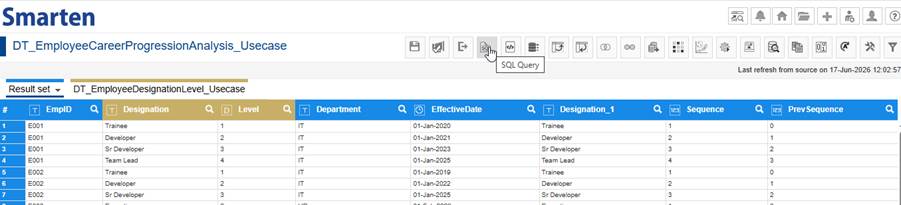
Figure 6.1: Custom Query Option
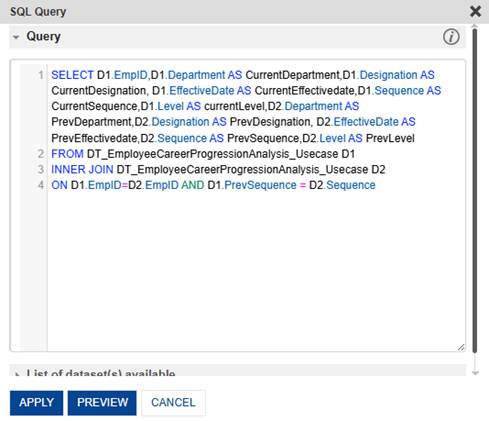
Spark SQL Query
SELECT
D1.EmpID,
D1.Department AS CurrentDepartment,
D1.Designation AS CurrentDesignation,
D1.EffectiveDate AS CurrentEffectiveDate,
D1.SequenceNo AS CurrentSequence,
D1.Level AS CurrentLevel,
D2.Department AS PrevDepartment,
D2.Designation AS PrevDesignation,
D2.EffectiveDate AS PrevEffectiveDate,
D2.SequenceNo AS PrevSequence,
D2.Level AS PrevLevel
FROM DT_EmployeeCareerProgressionAnalysis_Usecase D1
INNER JOIN DT_EmployeeCareerProgressionAnalysis_Usecase D2
ON D1.EmpID = D2.EmpID
AND D1.PrevSequence = D2.SequenceNo
In this query, D1 represents the current employee record and D2 represents the previous employee record. EmpID ensures that records are compared for the same employee, while PrevSequence links the current record with the immediately previous sequence number.
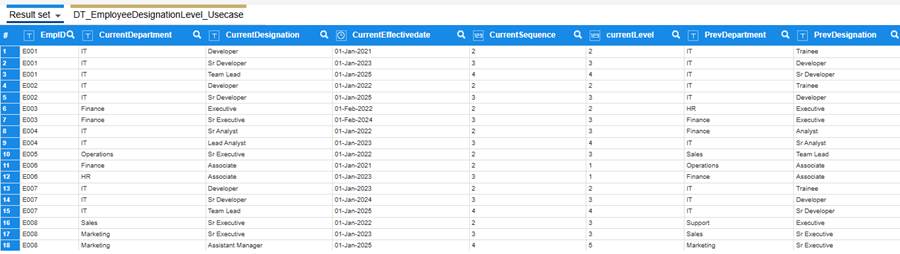
Figure 6.3: Output After Self-Join of Employee Records
Step 7: Derive the Employee Movement Type
Create a MovementType column to classify each employee movement as Promotion, Transfer, Transfer Promotion, Demotion, or No Change.
Expression :
ifCase(CurrentLevel > PrevLevel && CurrentDepartment != PrevDepartment, "Transfer Promotion",
ifCase(CurrentLevel > PrevLevel, "Promotion",
ifCase(CurrentLevel == PrevLevel && CurrentDepartment != PrevDepartment, "Transfer",
ifCase(CurrentLevel < PrevLevel, "Demotion", "No Change"))))
Condition | Movement Type |
Current Level > Previous Level and Department Changed | Transfer Promotion |
Current Level > Previous Level | Promotion |
Current Level = Previous Level and Department Changed | Transfer |
Current Level < Previous Level | Demotion |
Current Level = Previous Level and Department Remains Same | No Change |
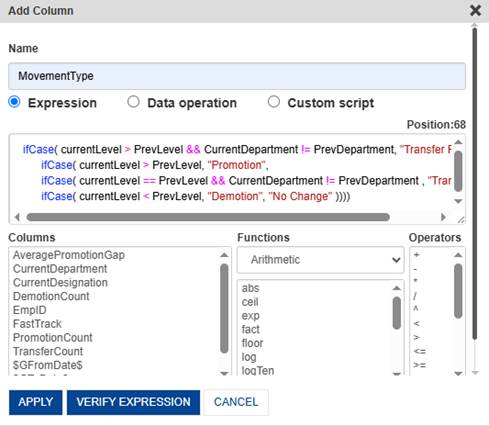
Figure 7.1: Deriving MovementType Column
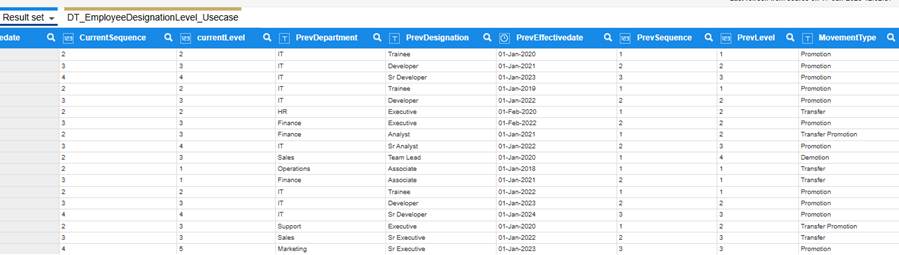
Figure 7.2: Output After Deriving MovementType
Step 8: Calculate Gap Years
Create a GapYears column to calculate the time difference between the previous career event and the current career event. This helps measure the duration between employee movements.
Expression
dateDiff("Y", PrevEffectiveDate, CurrentEffectiveDate)
If your environment returns a negative value, swap the date arguments based on the dateDiff behavior configured in your implementation.
Parameter | Description |
"Y" | Calculates the difference in years. |
PrevEffectiveDate | Previous employee movement date. |
CurrentEffectiveDate | Current employee movement date. |
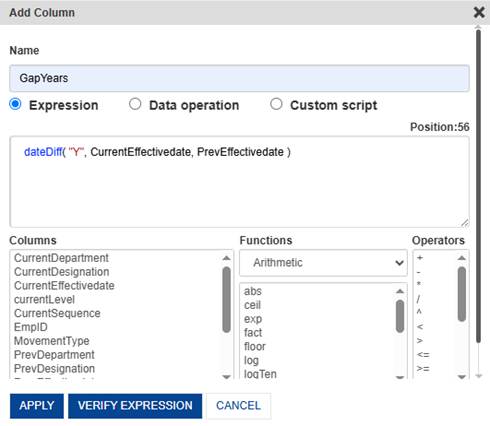
Figure 8.1: Calculating GapYears
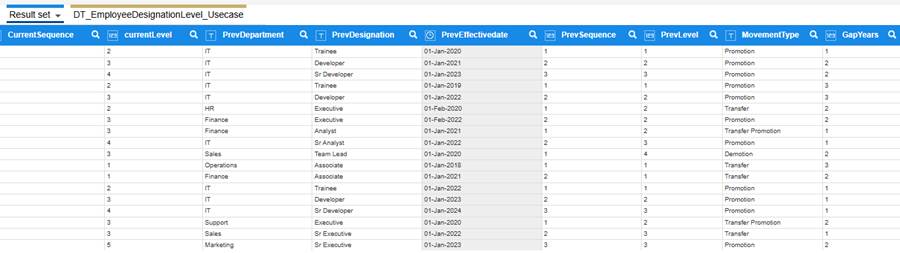
Figure 8.2: Output After Calculating GapYears
Step 9: Create Movement Count Columns
Create numeric indicator columns for each movement type. These columns can later be aggregated at the employee level.
Output Column | Expression | Purpose |
PromotionCount | ifCase(MovementType == "Promotion" || MovementType == "Transfer Promotion", 1, 0) | Counts promotion-related movements. |
TransferCount | ifCase(MovementType == "Transfer", 1, 0) | Counts lateral department transfers. |
DemotionCount | ifCase(MovementType == "Demotion", 1, 0) | Counts demotion movements. |
Step 10: Calculate Average Progression Gap
Calculate the average progression gap by applying the Average data operation on GapYears and grouping by EmpID. This metric indicates the average duration between career movements for each employee.
- Right-click the dataset and select Add Column.
- Select Custom.
- Select Data Operations.
- Choose Average.
- Select GapYears as the source column.
- Select EmpID in Group By.
- Provide the output column name as AveragePromotionGap and click OK.
For a strict promotion-gap metric, calculate the average only for rows where MovementType is Promotion or Transfer Promotion. Otherwise, rename this metric as Average Career Movement Gap for better clarity.
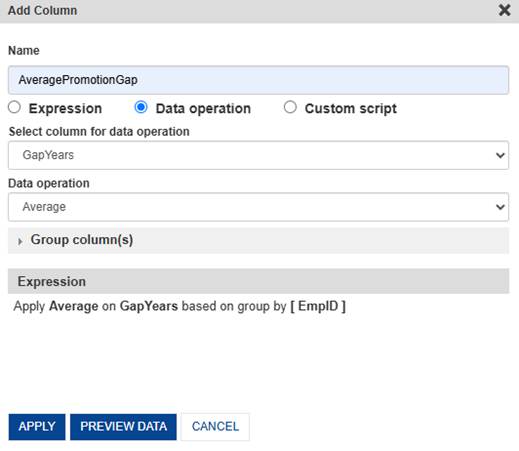
Figure 10.1: Calculating Average Progression Gap

Figure 10.2: Output After Calculating Movement Metrics and Average Gap
Step 11: Aggregate Employee Career Metrics
After deriving all movement flags and gap metrics, aggregate the dataset at the employee level. Group by EmpID and retain the latest current department and current designation, along with summed movement counts and average gap values.
Column | Recommended Aggregation |
EmpID | Group By |
CurrentDepartment | Latest / Last value based on CurrentEffectiveDate |
CurrentDesignation | Latest / Last value based on CurrentEffectiveDate |
PromotionCount | Sum |
TransferCount | Sum |
DemotionCount | Sum |
AveragePromotionGap | Average or Latest employee-level value |
Before publishing the final dataset, remove intermediate columns that are not required for reporting, such as previous designation, previous department, current sequence, previous sequence, and row-level comparison columns.
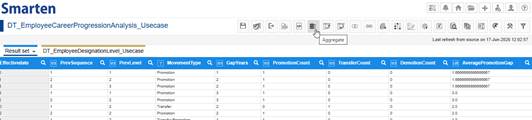
Figure 11.1: Aggregating Employee Career Metrics
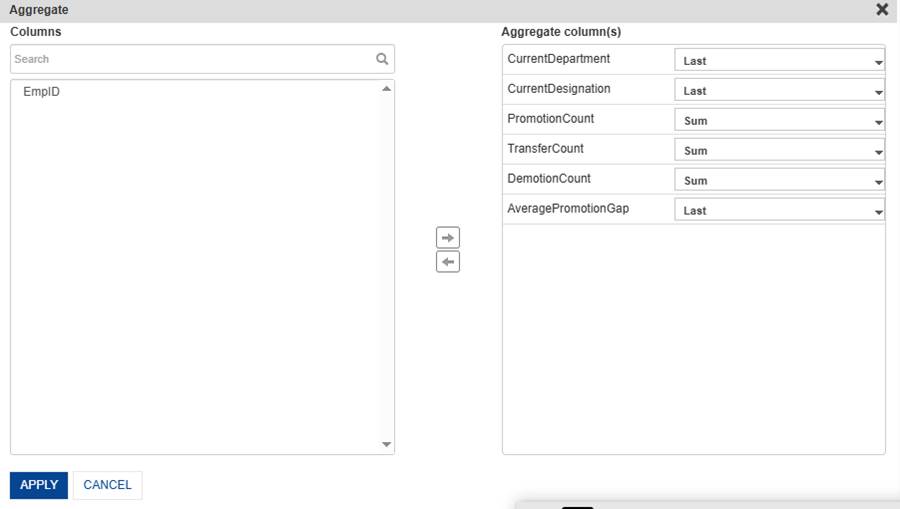
Figure 11.2: Output After Aggregation
Step 12: Derive Fast-Track Employees
Create a FastTrack column to identify employees who are progressing faster than the defined organization threshold. In this example, employees with an average progression gap of approximately two years or less are marked as fast-track employees.
Expression :
ifCase(AveragePromotionGap < 2.02, "Yes", "No")
The 2.02 value is used to include employees whose average progression gap is effectively two years after decimal calculations. For a production implementation, this threshold should be confirmed with HR stakeholders.

Figure 12.1: Final Output Dataset

Figure 12.2: Employee-Level Career Progression Summary
Conclusion
This use case demonstrates how employee career progression can be analyzed in Smarten SSDP using historical employee records and designation hierarchy data. By comparing each employee's current and previous career records, organizations can identify promotions, transfers, transfer promotions, demotions, and no-change movements.
The resulting dataset provides meaningful HR analytics metrics such as promotion count, transfer count, demotion count, average progression gap, and fast-track employee identification. These insights help organizations strengthen succession planning, improve talent retention, monitor internal mobility, and support data-driven workforce planning decisions
Was this article helpful?
That’s Great!
Thank you for your feedback
Sorry! We couldn't be helpful
Thank you for your feedback
Feedback sent
We appreciate your effort and will try to fix the article