
Data operations are calculations performed on existing data, not data created from other sources. They involve applying formulas and mathematical or statistical functions to a group of records to produce meaningful results.
These operations help summarize and organize information through examples like running totals, group averages, percentages, and trend calculations. Instead of generating new data, data operations refine and transform the same data to make it easier to interpret and use for analysis and decision-making.
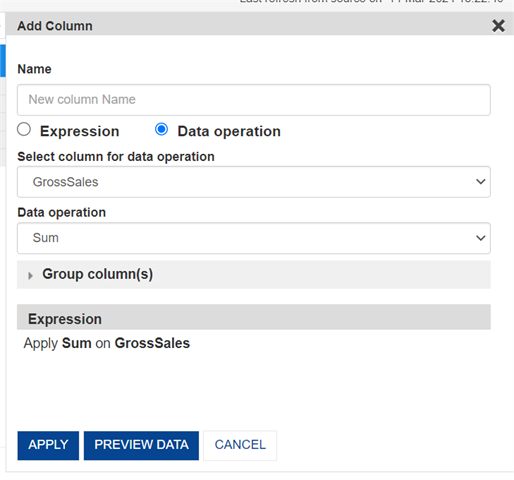
Parameters:
- Name - We need to enter a name for the column.
- Select column for data operation -Select the column on which we want to perform the data operations.
- Data Operation - Select which operation we want to perform on the given column.
- Group Columns (Optional) - This allows us to aggregate data based on one or more columns.
- Order by columns (Optional) - This allows us to choose the column based on which we want to order our data.
Let’s understand all the available data operations in detail:
1. Sum
Function Overview:
The Sum function under SSDP Data Operations allows users to calculate total values across a specified group of data without collapsing individual records. This lets you retain daily-level data (for example) while attaching aggregate metrics such as total monthly or regional sales to each record. It is ideal for scenarios where contextual group totals are required alongside row-level data.
Use Case: Multi-Level Totals for Segment-Based Comparison Within Detailed Rows
Business Scenario:
A regional sales manager needs to analyse product-level daily sales with an added dimension: how those sales compare within a region-month group. The requirement is to retain each product’s daily record and simultaneously show the total sales for that region and month. This enables per-product performance comparison within that specific region and timeframe.
This cannot be done using a Crosstab Object in Smarten, as Crosstabs collapse rows into grouped summaries and do not allow mixing row-level detail with grouped totals directly.
Sample Dataset:
Date | Region | Product | Month | Year | Sales |
01-01-2025 | North | A | January | 2025 | 100 |
01-01-2025 | North | B | January | 2025 | 200 |
01-01-2025 | South | A | January | 2025 | 180 |
02-01-2025 | North | A | January | 2025 | 150 |
Requirement:
Create a new column: Regional Monthly Sales
Each row should carry the total sales for that row’s Region + Month + Year, while still showing product-level, day-wise details.
SSDP Columns Configuration:
- Name: Regional Monthly Sales
- Select Column: Sales
- Data Operation: Sum
- Group Columns: Region, Month, Year
- Order By Column: Date (Optional)
Once configured, click Preview Data to verify the output.
Note: If Group Column is not set, the sum will be applied across the full dataset, which may give misleading results across months or regions.
Expected Output:
Date | Region | Product | Sales | Regional Monthly Sales |
01-01-2025 | North | A | 100 | 450 |
01-01-2025 | North | B | 200 | 450 |
02-01-2025 | North | A | 150 | 450 |
01-01-2025 | South | A | 180 | 180 |
2. Average
Function Overview:
The Average function under SSDP Data Operations allows users to compute mean values across a specified group of data without collapsing the individual records. This ensures each detailed record (e.g., per student score or daily sales entry) retains its granularity, while also showing context-based averages like class-level or regional-monthly averages.
It is ideal for use cases where row-level data must be preserved alongside calculated group averages for comparative analysis or KPI enrichment.
Use Case: Student Performance Benchmarking Across Subjects and Classes
Business Scenario:
An academic coordinator wants to assess how individual students performed on specific test dates, but also needs to compare each student’s score against the average marks for that subject in their class and exam month. The goal is to retain each test record but also provide a contextual average score for better interpretation of performance.
This analysis isn't feasible with a Crosstab Object in Smarten, as Crosstabs aggregate data and eliminate row-level visibility, making individual vs. group comparisons impossible within the same view.
Sample Dataset:
Date | Class | Student | Subject | Month | Year | Marks |
01-01-2025 | 10A | John | Math | January | 2025 | 85 |
01-01-2025 | 10A | Rita | Math | January | 2025 | 78 |
01-01-2025 | 10B | Ahmed | Math | January | 2025 | 92 |
02-01-2025 | 10A | John | Math | January | 2025 | 88 |
Requirement:
Create a new column: Class-Subject Monthly Average Marks
Each row should reflect the average marks for that row’s Class + Subject + Month + Year, while preserving daily and student-level detail.
SSDP Columns Configuration:
- Name: Class-Subject Monthly Average Marks
- Select Column: Marks
- Data Operation: Average
- Group Columns: Class, Subject, Month, Year
- Order By Column: Date (Optional)
Click Preview Data to confirm accuracy.
Expected Output:
Date | Class | Student | Subject | Marks | Class-Subject Monthly Average Marks |
01-01-2025 | 10A | John | Math | 85 | 83.67 |
01-01-2025 | 10A | Rita | Math | 78 | 83.67 |
01-01-2025 | 10B | Ahmed | Math | 92 | 92.0 |
02-01-2025 | 10A | John | Math | 88 | 83.67 |
3. Effective Average
Function Overview
The Effective Average function in SSDP Data Operations calculates contextual averages across defined segments of data — such as product categories, regional sales zones, or customer cohorts — without summarizing or collapsing individual records.
Null Value Handling: When calculating an Effective Average, null values are excluded from both the sum and the count. This ensures that missing data does not distort the average.
Each data row retains its original details (e.g., daily sales entries, product-specific orders), while the system calculates and appends an average value relevant to a defined group. This enables more insightful analytics and intra-group performance evaluation.
Typical use cases include enriching granular datasets with metrics like:
- Average order value by region and month
- Average revenue per category and sales channel
Use Case: Regional Product Sales Analysis
Business Scenario:
A sales manager wants to evaluate individual product sales across different regions and months, and compare each transaction with the average sales performance of similar products in the same Region + Month + Year.
Instead of summarizing the data into totals, the requirement is to retain every transaction record while adding a new column that shows the contextual average for its group.
This type of row-level + group-level comparison is not achievable using Crosstab Objects in Smarten, as crosstabs aggregate and summarize the data, removing transaction-level details.
Sample Dataset
Date | Region | Product Category | Product Name | Month | Year | Sales Amount |
01-05-2025 | North | Electronics | Mobile X | May | 2025 | 1200 |
01-05-2025 | North | Electronics | Mobile Y | May | 2025 | 1500 |
01-05-2025 | South | Electronics | Mobile X | May | 2025 | 1000 |
02-05-2025 | North | Electronics | Mobile Z | May | 2025 | (null) |
Requirement
Create a new column: Effective Regional-Category Monthly Avg. Sales
- Each row should display the average "Sales Amount" for that row’s combination of Region + Product Category + Month + Year.
- All original row details (Date, Product Name, Sales Amount) must remain unchanged.
- Null Sales Amount values should be ignored in both the sum and count.
SSDP Columns Configuration
- Name: Effective Regional-Category Monthly Avg Sales
- Select Column: Sales Amount
- Data Operation: Average
- Group Columns: Region, Product Category, Month, Year
- Order By Column: Date (Optional)
Click Preview Data to confirm the calculation logic.
Date | Region | Product Category | Product Name | Sales Amount | Effective Regional-Category Monthly Avg Sales |
01-05-2025 | North | Electronics | Mobile X | 1200 | 1350.00 |
01-05-2025 | North | Electronics | Mobile Y | 1500 | 1350.00 |
02-05-2025 | North | Electronics | Mobile Z | (null) | 1350.00 |
01-05-2025 | South | Electronics | Mobile X | 1000 | 1000.00 |
Expected Output
Calculation Note:
- North - Electronics - May 2025: (1200 + 1500) ÷ 2 = 1350.00 → (null row excluded)
- South - Electronics - May 2025: (1000) ÷ 1 = 1000.00
4. Count
Function Overview:
The Count function calculates the number of records (rows) within a defined group. It’s useful to measure frequency like how many sales transactions occurred for a product, in a region, or during a specific time frame.
Use Case: Count of Sales Transactions per Product per Month
Business Scenario:
A sales manager wants to track how many times a product was sold during each month. This helps measure product traction, customer interaction, and demand frequency.
Sample Dataset:
Date | Product | Month | Year | Sales |
1/1/2025 | A | Jan | 2025 | 100 |
3/1/2025 | A | Jan | 2025 | 120 |
1/1/2025 | B | Jan | 2025 | 200 |
5/1/2025 | B | Jan | 2025 | 220 |
10/1/2025 | A | Jan | 2025 | 130 |
Requirement:
Create a column Monthly Transaction Count to show how many times each product was sold in a given month.
SSDP Columns Configuration:
- Name: Monthly Transaction Count
- Data Operation: Count
- Group Columns: Product, Month, Year
Expected Output:
Product | Date | Sales | Monthly Transaction Count |
A | 1/1/2025 | 100 | 3 |
A | 3/1/2025 | 120 | 3 |
A | 10/1/2025 | 130 | 3 |
B | 1/1/2025 | 200 | 2 |
B | 5/1/2025 | 220 | 2 |
5. Distinct Count
Function Overview:
Distinct Count counts how many unique values exist within a specific column, grouped by other fields. It’s helpful to identify reach, variety, or uniqueness e.g., number of unique customers, products, or stores involved.
Use Case: Count Unique Products Sold per Region-Month
Business Scenario:
A regional head wants to know how many different products were sold in each region per month to assess product diversity and market penetration.
Sample Dataset:
Date | Region | Product | Month | Year | Sales |
1/1/2025 | North | A | Jan | 2025 | 100 |
2/1/2025 | North | B | Jan | 2025 | 200 |
3/1/2025 | North | A | Jan | 2025 | 150 |
1/1/2025 | South | A | Jan | 2025 | 180 |
4/1/2025 | South | C | Jan | 2025 | 300 |
Requirement:
Create a column Unique Products Sold to show the count of different products sold in each Region + Month.
SSDP Columns Configuration:
- Name: Unique Products Sold
- Select Column: Product
- Data Operation: Distinct Count
- Group Columns: Region, Month, Year
Expected Output:
Region | Product | Date | Sales | Unique Products Sold |
North | A | 1/1/2025 | 100 | 2 |
North | B | 2/1/2025 | 200 | 2 |
North | A | 3/1/2025 | 150 | 2 |
South | A | 1/1/2025 | 180 | 2 |
South | C | 4/1/2025 | 300 | 2 |
6. Effective Count
Function Overview:
Effective Count is a smarter variant of Count, which only considers non-null, non-zero, and valid entries in the selected column. It’s ideal when you want to ensure only meaningful sales entries (e.g., >0 or not blank) are counted.
Use Case: Count Valid Sales Transactions per Product
Business Scenario:
The finance team wants to count only effective (non-zero) sales per product for each month, ignoring rows with missing or zero sales.
Sample Dataset:
Date | Product | Month | Year | Sales |
1/1/2025 | A | Jan | 2025 | 100 |
2/1/2025 | A | Jan | 2025 | 0 |
3/1/2025 | A | Jan | 2025 | |
1/1/2025 | B | Jan | 2025 | 220 |
3/1/2025 | B | Jan | 2025 | 0 |
Requirement:
Create a column Effective Sales Count that only includes rows with non-zero, non-null sales.
SSDP Columns Configuration:
- Name: Effective Sales Count
- Select Column: Sales
- Data Operation: Effective Count
- Group Columns: Product, Month, Year
Expected Output:
Product | Date | Sales | Effective Sales Count |
A | 1/1/2025 | 100 | 1 |
A | 2/1/2025 | 0 | 1 |
A | 3/1/2025 | 1 | |
B | 1/1/2025 | 220 | 1 |
B | 3/1/2025 | 0 | 1 |
7. Max
Function Overview:
The Max Data Operation identifies the maximum value in a selected column, grouped by one or more fields. This operation is essential for detecting peak performance, recognizing top-performing segments, and surfacing high-value metrics – all while preserving full row-level detail in the dataset.
Use Case: Highest Monthly Sales by Region
Business Scenario:
A regional sales manager is analysing monthly revenue performance across various geographical regions. By grouping the dataset by Region and Month, the manager can easily identify the highest revenue value recorded in each region for every month. These insights help inform decisions related to budget planning, resource allocation, and performance recognition.
Crosstab objects summarize data and strip away row-level detail, making it difficult to calculate maximum values across multiple groupings while retaining full data context. The SSDP Max Data Operation enables clear, accurate identification of peak values — directly within the raw dataset.
Sample Dataset:
Sales Date | Month | Region | Product | Monthly Revenue |
01-06-2025 | Jun 2025 | North | Bakery | 8,00,000 |
01-06-2025 | Jun 2025 | North | Juice | 6,50,000 |
01-06-2025 | Jun 2025 | North | Snacks | 9,20,000 |
01-06-2025 | Jun 2025 | South | Bakery | 5,40,000 |
01-06-2025 | Jun 2025 | South | Juice | 4,90,000 |
01-06-2025 | Jun 2025 | South | Snacks | 7,30,000 |
Requirement:
Create a new column Highest Revenue (Monthly) to calculate the maximum revenue for each Region–Month group.
SSDP Columns Configuration:
- Column Name: Highest Revenue (Monthly)
- Select Column: Monthly Revenue
- Data Operation: Max
- Group Column: Region, Month
Once configured, click Preview Data to verify the output.
Note: If Group Column is not set, the percentage difference will be applied across the full dataset, which may give misleading results across months or regions.
Expected Output:
In this output, the Highest Revenue (Monthly) column shows the maximum Monthly Revenue for each Region–Month group.
- For North – Jun 2025, the highest revenue is 9,20,000, which appears across all three product rows.
- For South – Jun 2025, the highest revenue is 7,30,000, repeated on each row for that region.
This allows users to compare each product’s performance against the regional peak for the month while preserving all row-level details.
Sales Date | Month | Region | Product | Monthly Revenue | Highest Revenue (Monthly) |
01-06-2025 | Jun 2025 | North | Bakery | 8,00,000 | 9,20,000 |
01-06-2025 | Jun 2025 | North | Juice | 6,50,000 | 9,20,000 |
01-06-2025 | Jun 2025 | North | Snacks | 9,20,000 | 9,20,000 |
01-06-2025 | Jun 2025 | South | Bakery | 5,40,000 | 7,30,000 |
01-06-2025 | Jun 2025 | South | Juice | 4,90,000 | 7,30,000 |
01-06-2025 | Jun 2025 | South | Snacks | 7,30,000 | 7,30,000 |
8. Min
Function Overview:
The Min Data Operation identifies the minimum value in a selected column, grouped by one or more fields. This operation is essential for detecting the lowest performance points, highlighting areas that need attention, and surfacing underperforming entities – all while preserving full row-level detail in the dataset.
Use Case: Lowest Monthly Sales by Region
Business Scenario:
A regional sales manager is analyzing monthly revenue performance across various geographical regions. By grouping the dataset by Region and Month, the manager can easily identify the lowest revenue value recorded in each region for every month. These insights help reveal weak-performing areas, allowing the business to take corrective actions such as promotions, supply adjustments, or strategic changes.
Crosstab objects summarize data and remove row-level granularity, making it difficult to calculate minimum values across multiple groupings while maintaining full data visibility. The SSDP Min Data Operation ensures the lowest values are surfaced clearly and accurately -directly within the raw dataset.
Sample Dataset:
Sales Date | Month | Region | Product | Monthly Revenue |
01-06-2025 | Jun 2025 | North | Bakery | 8,00,000 |
01-06-2025 | Jun 2025 | North | Juice | 6,50,000 |
01-06-2025 | Jun 2025 | North | Snacks | 9,20,000 |
01-06-2025 | Jun 2025 | South | Bakery | 5,40,000 |
01-06-2025 | Jun 2025 | South | Juice | 4,90,000 |
01-06-2025 | Jun 2025 | South | Snacks | 7,30,000 |
Requirement:
Create a new column Lowest Revenue (Monthly) to show the minimum revenue for each Region and Month combination.
SSDP Columns Configuration:
- Column Name: Lowest Revenue (Monthly)
- Select Column: Monthly Revenue
- Data Operation: Min
- Group Column: Region, Month
Once configured, click Preview Data to verify the output.
Expected Output:
The “Lowest Revenue (Monthly)” column shows the minimum revenue recorded within each Region–Month group:
- For North – Jun 2025, the lowest revenue is ₹6,50,000 (from Juice), so all rows for North in June show 6,50,000.
- For South – Jun 2025, the lowest revenue is ₹4,90,000 (from Juice), repeated across all rows for South.
This helps compare each product’s revenue against the regional monthly low, while keeping all product-level details intact.
Sales Date | Month | Region | Product | Monthly Revenue | Lowest Revenue (Monthly) |
01-06-2025 | Jun 2025 | North | Bakery | 8,00,000 | 6,50,000 |
01-06-2025 | Jun 2025 | North | Juice | 6,50,000 | 6,50,000 |
01-06-2025 | Jun 2025 | North | Snacks | 9,20,000 | 6,50,000 |
01-06-2025 | Jun 2025 | South | Bakery | 5,40,000 | 4,90,000 |
01-06-2025 | Jun 2025 | South | Juice | 4,90,000 | 4,90,000 |
01-06-2025 | Jun 2025 | South | Snacks | 7,30,000 | 4,90,000 |
9. First
Function Overview:
The "First" function helps you get the very first value from a group of data, just like picking the first item from a list. It looks at the order of the data and gives you the one that comes first.
For example, if you have monthly sales data - January: 10,000, February: 15,000, March: 20,000—using the "First" function would return 10,000, since it’s the first value in the list. This is helpful when you want to compare current values with the starting point or highlight the initial entry in a dataset.
Use Case: Monthly Product-Wise Opening Sale Value
Business Scenario:
The goal is to identify the opening sale amount for each product within a given month and year. This helps in understanding when sales activity begins for each product and supports monthly performance analysis. By using the "First" function, we can easily retrieve the opening sale amount based on the date of the first recorded sale for each product in that month.
Sample Dataset:
Date | Product | Month | Year | Sales |
01-01-2025 | A | January | 2025 | 100 |
03-01-2025 | A | January | 2025 | 120 |
01-01-2025 | B | January | 2025 | 200 |
05-01-2025 | B | January | 2025 | 220 |
Requirement:
Create a column called First Monthly Sale. It should show the first sales value of each product for that month/year.
SSDP Columns Configuration:
- Column Name: First Monthly Sale
- Select Column: Sales
- Data Operation: First
- Group Column: Product, Month, Year
- Order By Column: Date (ascending)
Expected Output:
Date | Product | Sales | First Monthly Sale |
01-01-2025 | A | 100 | 100 |
03-01-2025 | A | 120 | 100 |
01-01-2025 | B | 200 | 200 |
05-01-2025 | B | 220 | 200 |
10. Last
Function Overview:
The "Last" function helps you get the very last value from a group of data, just like picking the last item from a list. It looks at the order of the data and gives you the one that comes last.
For example, if you have monthly sales data—January: 10,000, February: 15,000, March: 20,000—using the "Last" function would return 20,000, since it’s the last value in the list. This is helpful when you want to compare current values with the previous point or highlight the latest entry in a dataset.
Use Case: Monthly Product-Wise Closing Sale Value
Business Scenario:
The goal is to identify the closing sale amount for each product within a given month and year. This helps in understanding when the last sales activity occurred for each product and supports end-of-month performance analysis. By using the "Last" function, we can easily retrieve the closing sale amount based on the date of the last recorded sale for each product in that month.
Sample Dataset:
Date | Product | Month | Year | Sales |
01-01-2025 | A | January | 2025 | 100 |
03-01-2025 | A | January | 2025 | 120 |
01-01-2025 | B | January | 2025 | 200 |
05-01-2025 | B | January | 2025 | 220 |
Requirement:
Create a column called Last Monthly Sale. Each row should reflect the final sales value recorded for that product in that month.
SSDP Columns Configuration:
- Column Name: Last Monthly Sale
- Select Column: Sales
- Data Operation: Last
- Group Column: Product, Month, Year
- Order By Column: Date (ascending)
Expected Output:
Date | Product | Sales | Last Monthly Sale |
01-01-2025 | A | 100 | 120 |
03-01-2025 | A | 120 | 120 |
01-01-2025 | B | 200 | 220 |
05-01-2025 | B | 220 | 220 |
11. Row Percentage
Function Overview:
The Row Percentage function helps you see how much each value contributes to the total, shown as a percentage. It’s like breaking down a total amount to see the share of each item.
For example, if you have sales like:
Product A: 40
Product B: 30
Product C: 30
The total is 100. So, Product A makes up 40%, Product B 30%, and Product C 30% of the total.
This function is helpful when you want to compare how big or small each value is compared to the whole.
Use Case: See Product Contribution Within Region-Month Using Row Percentage
Business Scenario:
A regional manager wants to track daily sales for each product and also understand how much each product is contributing to the total monthly sales in that region.
By using the Row Percentage function, they can see what percentage each product’s sales add to the region’s total sales for the month. This makes it easy to compare product performance and identify which products are making a bigger or smaller impact.
Sample Dataset:
Date | Region | Product | Month | Year | Sales |
1/1/2025 | North | A | January | 2025 | 100 |
1/1/2025 | North | B | January | 2025 | 200 |
1/1/2025 | South | A | January | 2025 | 180 |
2/1/2025 | North | A | January | 2025 | 150 |
Requirement:
Create a new column: Regional Monthly Sales %
Each row should show the percentage of sales that row contributes to its Region + Month + Year total.
SSDP Columns Configuration:
- Column Name: Regional Monthly Sales %
- Select Column: Sales
- Data Operation: Row Percentage
- Group Column: Region, Month, Year
- Order By Column: Date (Optional)
After setting up, click Preview Data to check results.
Note: If no Group Columns are selected, the percentage will be calculated across the entire dataset.
Expected Output:
Date | Region | Product | Sales | Regional Monthly Sales % |
1/1/2025 | North | A | 100 | 22.22% |
1/1/2025 | North | B | 200 | 44.44% |
2/1/2025 | North | A | 150 | 33.33% |
1/1/2025 | South | A | 180 | 100% |
(North January total = 100+200+150 = 450; South January = 180)
12. Relative Row Difference
Function Overview:
The Relative Row Difference operation shows the change in values between consecutive rows based on a defined order, helping to track trends, spot anomalies, and compare sequential data without losing row-level detail.
Use Case: Daily Regional Sales Change Monitoring by Region and Month
Business Scenario:
A national sales manager is analysing daily sales trends across regions and months. To ensure accurate insights, the data is grouped by region and month, allowing the manager to track daily revenue changes within each month. This helps quickly identify any sudden rise or drop in sales and take timely actions.
Sample Dataset:
Sales Date | Month | Region | Daily Revenue |
30-05-2025 | May 2025 | East | 12,00,000 |
31-05-2025 | May 2025 | East | 12,50,000 |
01-06-2025 | Jun 2025 | East | 11,80,000 |
02-06-2025 | Jun 2025 | East | 13,00,000 |
30-05-2025 | May 2025 | West | 9,80,000 |
31-05-2025 | May 2025 | West | 10,20,000 |
01-06-2025 | Jun 2025 | West | 9,95,000 |
Requirement:
Create a new column Change in Revenue (Daily) to calculate the difference in daily revenue for each region, within the same month.
SSDP Columns Configuration:
- Column Name: Change in Revenue (Daily)
- Select Column: Daily Revenue
- Data Operation: Relative Row Difference
- Group Column: Region, Month
- Order By Column: Sales Date
Once configured, click Preview Data to verify the output.
Note: If Group Column is not set, the difference will be applied across the full dataset, which may give misleading results across months or regions.
Expected Output:
The output shows the daily revenue and the Change in Revenue (Daily) for each Region, grouped by Month and ordered by Sales Date.
- On the first date of each Region–Month group, the Change in Revenue (Daily) is equal to the Daily Revenue, as there is no previous date for comparison within that group.
- For subsequent dates within the same group, the column reflects the difference from the previous day.
- When the month changes, the comparison resets — the first day of the new month is again treated as the start of a new group.
Sales Date | Month | Region | Daily Revenue | Change in Revenue (Daily) |
30-05-2025 | May 2025 | East | 12,00,000 | 12,00,000 |
31-05-2025 | May 2025 | East | 12,50,000 | 50,000 |
01-06-2025 | Jun 2025 | East | 11,80,000 | 11,80,000 |
02-06-2025 | Jun 2025 | East | 13,00,000 | 1,20,000 |
30-05-2025 | May 2025 | West | 9,80,000 | 9,80,000 |
31-05-2025 | May 2025 | West | 10,20,000 | 40,000 |
01-06-2025 | Jun 2025 | West | 9,95,000 | 9,95,000 |
13.Relative Row Difference Percentage
Function Overview:
The Relative Row Difference Percentage operation calculates the percentage change between consecutive rows based on a defined order, helping to identify trends, growth, or decline over time.
Use Case: Daily Revenue Growth Monitoring by Region and Month
Business Scenario:
A national sales manager is reviewing daily revenue changes across regions and months. Grouping the data by Region and Month ensures relevant comparisons and helps identify accurate sales trends within each period.
Sample Dataset:
Sales Date | Month | Region | Daily Revenue |
30-05-2025 | May 2025 | East | 12,00,000 |
31-05-2025 | May 2025 | East | 12,50,000 |
01-06-2025 | Jun 2025 | East | 11,80,000 |
02-06-2025 | Jun 2025 | East | 13,00,000 |
30-05-2025 | May 2025 | West | 9,80,000 |
31-05-2025 | May 2025 | West | 10,20,000 |
01-06-2025 | Jun 2025 | West | 9,95,000 |
Requirement:
Create a new column Change in Revenue % (Daily) to calculate the percentage difference in daily revenue for each region within the same month.
SSDP Columns Configuration:
- Column Name: Change in Revenue % (Daily)
- Select Column: Daily Revenue
- Data Operation: Relative Row Difference Percentage
- Group Column: Region, Month
- Order By Column: Sales Date
Once configured, click Preview Data to verify the output.
Note: If Group Column is not set, the percentage difference will be applied across the full dataset, which may give misleading results across months or regions.
Expected Output:
The output shows daily revenue and the calculated percentage change from the previous day, grouped by Region and Month, and ordered by Sales Date.
- The first date in each Region-Month group returns 100% , since no prior value exists.
- All subsequent dates show the percentage change compared to the previous day's revenue.
- When the month changes, the percentage calculation resets.
Sales Date | Month | Region | Daily Revenue | Change in Revenue % (Daily) |
30-05-2025 | May 2025 | East | 12,00,000 | 100.00 |
31-05-2025 | May 2025 | East | 12,50,000 | 4.17 |
01-06-2025 | Jun 2025 | East | 11,80,000 | 100.00 |
02-06-2025 | Jun 2025 | East | 13,00,000 | 10.17 |
30-05-2025 | May 2025 | West | 9,80,000 | 100.00 |
31-05-2025 | May 2025 | West | 10,20,000 | 4.08 |
01-06-2025 | Jun 2025 | West | 9,95,000 | 100.00 |
14. Cumulative Sum
Function Overview:
The Cumulative Sum operation computes a running total of a numeric column based on a defined order, helping track how values accumulate over time or sequence.
Use Case: Monthly Sales Tracking by Region and Product Category
Business Scenario:
A regional sales manager tracks how sales build up over the month by region and category, using a running total to evaluate progress toward monthly targets instead of viewing daily sales in isolation.
Sample Dataset:
Sales Date | Month | Region | Category | Daily Sales |
01-05-2025 | May 2025 | North | Snacks | 1,00,000 |
02-05-2025 | May 2025 | North | Snacks | 1,20,000 |
03-05-2025 | May 2025 | North | Snacks | 80,000 |
01-05-2025 | May 2025 | South | Beverages | 90,000 |
02-05-2025 | May 2025 | South | Beverages | 95,000 |
Requirement:
Create a new column Cumulative Sales to calculate the running total of sales for each Region and Category within the same month.
SSDP Columns Configuration:
- Column Name: Cumulative Sales
- Select Column: Daily Sales
- Data Operation: Cumulative Sum
- Group Column: Region, Category, Month
- Order By Column: Sales Date
Once configured, click Preview Data to verify the cumulative results.
Note: If Group Column is not defined, the running total will apply across the full dataset, mixing unrelated records from different regions or months.
Expected Output:
The expected output shows the daily sales and their corresponding cumulative sales grouped by Region, Category, and Month. The Cumulative Sales column adds up the Daily Sales in sequential order (based on Sales Date) within each Region-Category-Month group.
Sales Date | Month | Region | Category | Daily Sales | Cumulative Sales |
01-05-2025 | May 2025 | North | Snacks | 1,00,000 | 1,00,000 |
02-05-2025 | May 2025 | North | Snacks | 1,20,000 | 2,20,000 |
03-05-2025 | May 2025 | North | Snacks | 80,000 | 3,00,000 |
01-05-2025 | May 2025 | South | Beverages | 90,000 | 90,000 |
02-05-2025 | May 2025 | South | Beverages | 95,000 | 1,85,000 |
15. Rank
Function Overview:
The Rank function under SSDP Data Operations assigns a unique rank to each row within a specified group based on the values in an "Order By" column. If two or more rows have the same value in the "Order By" column, they receive the same rank, and the next rank is skipped.
For example, if two items are ranked 2nd, the next item will be ranked 4th (skipping 3rd).
This function is ideal for scenarios where you need to understand the relative position of individual records within a dataset or a specific segment, while handling ties by skipping ranks.
Use Case: Student Performance Evaluation
Business Scenario:
A school administrator wants to evaluate student performance across subjects. Each student is ranked based on their score in a specific subject using Rank.
Requirement:
Create a new column to assign Rank to each student based on their Score within their Subject.
Sample Dataset:
Student ID | Subject | Score | Exam Date |
S003 | Math | 92 | 2024-05-10 |
S006 | Science | 90 | 2024-05-11 |
S007 | History | 75 | 2024-05-12 |
S001 | Math | 85 | 2024-05-10 |
S002 | Science | 78 | 2024-05-11 |
S004 | History | 65 | 2024-05-12 |
S005 | Math | 85 | 2024-05-10 |
S008 | Math | 70 | 2024-05-10 |
SSDP Columns Configuration:
- Column Name: Rank
- Select Column: Score
- Data Operation: Rank
- Group Columns: Subject
- Order By Column: Score (Descending)
Once configured, click Preview Data to verify the output.
Expected Output:
Student ID | Subject | Score | Rank |
S007 | History | 75 | 1 |
S004 | History | 65 | 2 |
S003 | Math | 92 | 1 |
S001 | Math | 85 | 2 |
S005 | Math | 85 | 2 |
S008 | Math | 70 | 4 |
S006 | Science | 90 | 1 |
S002 | Science | 78 | 2 |
For Example – Subject: Math
Sorted Scores: 92, 85, 85, 70
Ranks:
S003 (92) → Rank = 1
S001, S005 (85) → Rank = 2 (both tied)
S008 (70) → Rank = 4 (Rank 3 is skipped due to two tied at Rank 2)
16. Percent Rank
Function Overview:
The Percent Rank function under SSDP Data Operations calculates the relative rank of each row within a specified group as a percentage. It indicates the percentage of values in the group that are less than or equal to the current value. The result is a value between 0 and 1 (inclusive), where 0 represents the lowest value and 1 represents the highest value.
This function is particularly useful for understanding the distribution of data and where a specific record stands relative to the entire group, often used for percentile analysis.
Use Case: Student Performance Evaluation
Business Scenario:
A school administrator wants to evaluate student performance across subjects. Each student is ranked based on their score in a specific subject using Percent Rank.
Sample Dataset:
Student ID | Subject | Score | Exam Date |
S003 | Math | 92 | 2024-05-10 |
S006 | Science | 90 | 2024-05-11 |
S007 | History | 75 | 2024-05-12 |
S001 | Math | 85 | 2024-05-10 |
S002 | Science | 78 | 2024-05-11 |
S004 | History | 65 | 2024-05-12 |
S005 | Math | 85 | 2024-05-10 |
S008 | Math | 70 | 2024-05-10 |
Requirement:
Create a new column to assign Percent Rank to each student based on their Score within their Subject.
SSDP Columns Configuration:
- Name: Percent Rank
- Select Column: Score
- Data Operation: Percent Rank
- Group Columns: Subject
- Order By Column: Score (Descending)
Once configured, click Preview Data to verify the output.
Expected Output:
Student ID | Subject | Score | Rank | Dense Rank | Percent Rank |
S007 | History | 75 | 1 | 1 | 0.000 |
S004 | History | 65 | 2 | 2 | 1.000 |
S003 | Math | 92 | 1 | 1 | 0.000 |
S001 | Math | 85 | 2 | 2 | 0.333 |
S005 | Math | 85 | 2 | 2 | 0.333 |
S008 | Math | 70 | 4 | 3 | 1.000 |
S006 | Science | 90 | 1 | 1 | 0.000 |
S002 | Science | 78 | 2 | 2 | 1.000 |
Percent Rank = (Rank - 1) / (Total Rows in Group - 1)
Step-by-Step Example – Subject: Math
- Total Rows = 4 (S003, S001, S005, S008)
- Ranked order by Score:
- S003 (Score: 92) → Rank = 1 → Percent Rank = (1 - 1)/ (4 - 1) = 0.000
- S001 (Score: 85) → Rank = 2 → Percent Rank = (2 - 1)/ (4 - 1) = 0.333
- S005 (Score: 85) → Rank = 2 → Percent Rank = (2 - 1)/ (4 - 1) = 0.333
- S008 (Score: 70) → Rank = 4 → Percent Rank = (4 - 1)/ (4 - 1) = 1.000
This gives a percentage-based distribution.
17. Dense Rank
Function Overview:
The Dense Rank function under SSDP Data Operations assigns a unique rank to each distinct value within a specified group based on the values in an "Order By" column. Unlike the Rank function, Dense Rank does not skip ranks when there are ties. If two or more rows have the same value, they receive the same rank, and the next rank assigned is the next consecutive integer.
This function is ideal for scenarios where you need a continuous sequence of ranks without gaps, even when dealing with duplicate values.
Use Case: Student Performance Evaluation
Business Scenario:
A school administrator wants to evaluate student performance across subjects. Each student is ranked based on their score in a specific subject using Dense Rank.
Sample Dataset:
Student ID | Subject | Score | Exam Date |
S003 | Math | 92 | 2024-05-10 |
S006 | Science | 90 | 2024-05-11 |
S007 | History | 75 | 2024-05-12 |
S001 | Math | 85 | 2024-05-10 |
S002 | Science | 78 | 2024-05-11 |
S004 | History | 65 | 2024-05-12 |
S005 | Math | 85 | 2024-05-10 |
S008 | Math | 70 | 2024-05-10 |
Requirement:
Create a new column to assign Dense Rank to each student based on their Score within their Subject.
SSDP Columns Configuration:
- Name: Dense Rank
- Select Column: Score
- Data Operation: Dense Rank
- Group Columns: Subject
- Order By Column: Score (Descending)
Once configured, click Preview Data to verify the output.
Expected Output:
Student ID | Subject | Score | Rank | Dense Rank |
S007 | History | 75 | 1 | 1 |
S004 | History | 65 | 2 | 2 |
S003 | Math | 92 | 1 | 1 |
S001 | Math | 85 | 2 | 2 |
S005 | Math | 85 | 2 | 2 |
S008 | Math | 70 | 4 | 3 |
S006 | Science | 90 | 1 | 1 |
S002 | Science | 78 | 2 | 2 |
Example – Subject: Math
Sorted Scores: 92, 85, 85, 70
Dense Ranks:
S003 (92) → Dense Rank = 1
S001, S005 (85) → Dense Rank = 2 (both tied)
S008 (70) → Dense Rank = 3
Group by "Subject”, Sort in descending order and assigned the same rank to ties as it does not skip subsequent rank values.
18. Array
Function Overview:
The Array operation lets us gather multiple values, in this case, prices, for the same product from different sources, such as websites or vendors. This is particularly helpful for comparison platforms that track price changes and want to display all observed prices together for decision-making. It is suitable for situations where group lists are needed alongside row-level data.
Use Case: Aggregating Product Prices Across Multiple Websites
Business Scenario:
A price comparison platform regularly scrapes prices of the same product from multiple e-commerce websites (like Amazon, Flipkart, Snapdeal, etc.). For each ProductName, they want to collect all price points into a single array to:
1.Show price range for a product
2.Identify the cheapest and costliest sellers
3.Track price volatility across sources
This is not achievable in Crosstabs or pivot tables since they aggregate numerically, not in list/array form.
Sample Dataset:
Date | ProductName | Website | Price |
01-01-2025 | P1 | Amazon | 999 |
01-01-2025 | P1 | Flipkart | 1049 |
01-01-2025 | P1 | Snapdeal | 980 |
01-01-2025 | P2 | Amazon | 1999 |
Requirement:
Create a new column: Price Trend
(All Prices → array of prices across websites per product)
SSDP Columns Configuration:
- Name: Price Trend
- Select Column: Price
- Data Operation: Array
- Group Columns: Product ID
- Order By Column: Date (Optional)
Once configured, click Preview Data to verify the output.
Expected Output:
ProductName | Price Trend |
P1 | [999, 980, 1022] |
P2 | [1999, 2025] |
P1 | [999, 950, 1500] |
19. Distinct Array
Function Overview:
The Distinct Array operation in SSDP Data Operations gathers multiple values into a deduplicated array based on groupings. It works well when data includes repetitive values and we want only the unique set of values per group, such as distinct categories, users, payment methods, and more.
This operation is crucial for de-noising data, improving clarity, and providing compact summaries of categorical or textual data.
Use Case: The purchasing team wants to maintain a list of unique vendors per product.
Business Scenario:
Procurement systems permit multiple vendors for a single product, and purchasing entries can repeat the same vendor with different dates or purchase orders. The purchase unit, therefore, wants to keep a record of the unique vendors for each product to:
A. Understand supplier diversity
i) Perform risk analysis (e.g., if there’s only one vendor)
ii) Evaluate performance or pricing across vendors
B. Traditional summarization tools (like Crosstabs) cannot produce deduplicated string arrays — making this use case ideal for SSDP Distinct Array operation.
Sample Dataset:
Purchase Date | Product ID | Vendor | Quantity | Purchase Date | Product ID |
01-01-2025 | P1 | Vendor A | 100 | 01-01-2025 | P1 |
03-01-2025 | P1 | Vendor B | 150 | 03-01-2025 | P1 |
04-01-2025 | P1 | Vendor A | 120 | 04-01-2025 | P1 |
05-01-2025 | P2 | Vendor C | 90 | 05-01-2025 | P2 |
Requirement:
Create a new column: Unique Vendors
This column should list only the distinct vendor names for each product, ignoring repeated entries.
SSDP Columns Configuration:
- Name: Vendors List
- Select Column: Vendor
- Data Operation: Distinct Array
- Group Columns: Product Id
- Order By Column: Date (Optional)
Once configured, click Preview Data to verify the output.
Expected Output:
Product id | Unique Vendors |
P1 | ["Vendor A", "Vendor B"] |
P2 | ["Vendor C", "Vendor D"] |
Why This Can't Be Done in a Crosstab Object:
- Crosstab Objects summarize data but lose row-level granularity.
- They cannot combine grouped totals with detailed row-level records in the same output.
- Analysing contribution % or intra-group ranking within Crosstabs is not directly possible.
Why It’s Perfect for SSDP Sum Operation:
- Retains product-level detail while adding context-aware totals
- Supports segment-based comparisons
- Simplifies KPI calculations like product contribution %
- Enables rich analytics directly within the dataset, no external joins or tools needed
Summary:
This type of segment-level total embedded within detailed rows highlights the value of SSDP arithmetic data operations. They allow for more flexible and advanced group-level analysis, going beyond the limitations of traditional summarization tools like Crosstab objects.
Was this article helpful?
That’s Great!
Thank you for your feedback
Sorry! We couldn't be helpful
Thank you for your feedback
Feedback sent
We appreciate your effort and will try to fix the article