
Objective
The objective of this use case is to create a dynamic sales performance report that enables users to select a custom date range and compare the selected period against the corresponding period from the previous year. The selected date range is treated as the Current Year (CY) period, while the same date range shifted one year back is automatically considered the Previous Year (PY) period. For example, if a user selects 01-Jan-2025 to 06-May-2025, the report will compare it with 01-Jan-2024 to 06-May-2024.
The report provides a comprehensive view of sales performance by displaying key business metrics such as Achievement %, Shortfall, and Growth %. Achievement % measures the extent to which actual sales have met the planned budget, Shortfall highlights the variance between actual sales and budgeted sales, and Growth % shows the year-over-year change in sales performance.
The analysis can be presented across different time intervals, such as monthly, quarterly, or weekly, depending on reporting requirements. In addition to overall sales performance, the report also highlights a specific product category—Bakery—to enable focused analysis and comparison against total sales across all product categories. This helps users evaluate category-level performance while maintaining visibility into overall business results.
Requirement
A dynamic sales performance report is required to analyze and compare budgeted and actual sales over a user-defined time period. The report should support flexible date selection and automatically provide year-over-year comparisons for the corresponding period in the previous year.
The report must support the following capabilities:
• Allow users to select a custom reporting period using From Date and To Date parameters. The selected date range will be treated as the Current Year (CY) period, while the corresponding Previous Year (PY) period will be derived automatically by shifting the same date range one year back.
• Display Sales and Budget values for both:
- All product categories combined (Total)
- The Bakery product category separately
• Calculate and display Achievement %, indicating the percentage of budgeted sales achieved during the selected period.
• Calculate and display Shortfall, representing the difference between actual sales and budgeted sales.
• Include Previous Year Sales for the equivalent period to enable year-over-year performance comparison.
• Calculate and display Growth %, showing the percentage increase or decrease in sales compared to the corresponding period in the previous year.
• Present all metrics in a quarter-wise tabular format to facilitate performance analysis and trend identification.
Quarter Assignment Logic
The selected date range should be divided into calendar quarters based on the transaction date. Records are assigned to quarters using the standard calendar definition:
- Q1: January to March
- Q2: April to June
- Q3: July to September
- Q4: October to December
If the selected date range spans partial quarters, only the records falling within the selected period should be considered. The same logic must be applied to both Current Year and Previous Year data to ensure accurate quarter-wise comparisons.
For example, if the selected date range is 01-Jan-2025 to 06-May-2025:
- Q1 will include data from 01-Jan-2025 to 31-Mar-2025.
- Q2 will include data from 01-Apr-2025 to 06-May-2025.
- The corresponding Previous Year comparison will include:
- Q1: 01-Jan-2024 to 31-Mar-2024
- Q2: 01-Apr-2024 to 06-May-2024
This approach ensures that both complete and partial quarters are compared consistently across years.
• The report should dynamically refresh whenever the user changes the selected date range.
• The Bakery category should be highlighted separately through dedicated sales, budget, and performance metric columns, enabling users to compare category-specific performance against overall business performance.
About the Use case
This use case demonstrates the creation of a dynamic, quarter-wise sales performance report that compares budgeted sales against actual sales across both overall product categories and a specific focus category, Bakery. The report is designed to support flexible date selection, enabling users to analyze performance for any chosen period while automatically comparing it with the corresponding period from the previous year.
The report provides key business metrics such as Achievement %, Shortfall, and Growth %, allowing users to evaluate sales performance against budgets and measure year-over-year trends. While these metrics form the final output, the underlying value of the solution lies in the dynamic filtering and transformation logic used to generate meaningful insights from the raw data.
The following sections explain the key concepts and filters used to build the report.
1. Custom Date Range Filter
The report accepts a user-defined date range through the From Date and To Date parameters. The selected date range is treated as the Current Year (CY) period, while the corresponding Previous Year (PY) period is automatically derived by shifting both dates back by one year.
Example:
• Current Year (CY): 01-Jan-2025 to 06-May-2025 • Previous Year (PY): 01-Jan-2024 to 06-May-2024
Sales records falling within these date ranges are used to populate the Current Year and Previous Year sections of the report. This approach ensures that equivalent periods are always compared, regardless of the selected months or quarters.
2. Product Category Filter – Bakery
In addition to overall sales performance, the report separately tracks a focus product category, Bakery. Category-level filters are applied to isolate Bakery-specific sales and budget values and calculate category-specific performance metrics.
The Bakery filter is used to derive:
- Current Year Bakery Sales
- Current Year Bakery Budget
- Previous Year Bakery Sales
- Bakery Achievement %
- Bakery Shortfall
- Bakery Growth %
This allows users to evaluate the performance of a specific product category while maintaining visibility into overall business performance.
3. Quarter Identification Logic
To improve trend analysis and reporting consistency, each record is assigned to a calendar quarter based on its transaction date or budget date. A derived Quarter column is created from the date field and is used to group the data within the report.
Quarter assignments follow the standard calendar definition:
- Q1 – January to March • Q2 – April to June • Q3 – July to September • Q4 – October to December
When a selected date range spans multiple quarters, records are automatically grouped into their respective quarters. Partial quarters are also supported, ensuring that only records falling within the selected period are included in the analysis.
For example, if the selected date range is 01-Jan-2025 to 06-May-2025:
- Records from January to March are grouped under Q1. • Records from April to 06-May are grouped under Q2.
The same quarter assignment logic is applied to the Previous Year data, enabling accurate quarter-wise comparison between Current Year and Previous Year performance.
4. Sample Input Tables
The following tables provide a snapshot of the raw input data used in the report.
Sales Data:
Transaction Date | Product Category | Sales |
01-01-2024 | Bakery | 80,000 |
11-02-2024 | Beverages | 60,000 |
18-03-2024 | Snacks | 50,000 |
15-02-2024 | Bakery | 90,000 |
13-01-2024 | Beverages | 70,000 |
15-03-2024 | Snacks | 55,000 |
01-04-2024 | Bakery | 100,000 |
05-05-2024 | Beverages | 85,000 |
08-06-2024 | Snacks | 60,000 |
01-01-2025 | Bakery | 100,000 |
11-02-2025 | Beverages | 65,000 |
18-03-2025 | Snacks | 52,000 |
15-02-2025 | Bakery | 120,000 |
13-01-2025 | Beverages | 75,000 |
15-03-2025 | Snacks | 60,000 |
01-04-2025 | Bakery | 150,000 |
05-05-2025 | Beverages | 90,000 |
08-06-2025 | Snacks | 70,000 |
Budget Data:
Budget Month Date | Product Category | Budget Amount |
01-01-2025 | Bakery | 1,00,000 |
01-01-2025 | Beverages | 90,000 |
01-01-2025 | Snacks | 80,000 |
01-02-2025 | Bakery | 1,10,000 |
01-02-2025 | Beverages | 95,000 |
01-02-2025 | Snacks | 85,000 |
01-03-2025 | Bakery | 1,20,000 |
01-03-2025 | Beverages | 1,00,000 |
01-03-2025 | Snacks | 90,000 |
01-04-2025 | Bakery | 1,30,000 |
01-04-2025 | Beverages | 1,10,000 |
01-04-2025 | Snacks | 95,000 |
01-05-2025 | Bakery | 1,40,000 |
01-05-2025 | Beverages | 1,20,000 |
01-05-2025 | Snacks | 1,00,000 |
01-06-2025 | Bakery | 1,50,000 |
01-06-2025 | Beverages | 1,30,000 |
01-06-2025 | Snacks | 1,10,000 |
01-07-2025 | Bakery | 1,60,000 |
01-07-2025 | Beverages | 1,40,000 |
01-07-2025 | Snacks | 1,20,000 |
01-08-2025 | Bakery | 1,70,000 |
01-08-2025 | Beverages | 1,50,000 |
01-08-2025 | Snacks | 1,30,000 |
01-09-2025 | Bakery | 1,80,000 |
01-09-2025 | Beverages | 1,60,000 |
01-09-2025 | Snacks | 1,40,000 |
01-10-2025 | Bakery | 1,90,000 |
01-10-2025 | Beverages | 1,70,000 |
01-10-2025 | Snacks | 1,50,000 |
01-11-2025 | Bakery | 2,00,000 |
01-11-2025 | Beverages | 1,80,000 |
01-11-2025 | Snacks | 1,60,000 |
01-12-2025 | Bakery | 2,10,000 |
01-12-2025 | Beverages | 1,90,000 |
01-12-2025 | Snacks | 1,70,000 |
Final Output Table (Post Filter Application)
After filters and transformations are applied, the report generates a quarter-wise summary with key metrics, calculated separately for Total and Bakery categories.
Quarters | CY Total Budget | CY Bakery Budget | CY Total | CY Bakery | Total % Achievement | Bakery % Achievement | Total Shortfall(+/-) | Bakery Shortfall(+/-) | PY Total | PY Bakery | Total Growth %% | Bakery Growth % |
Q1 | 9,00,000 | 3,30,000 | 472,000 | 2,20,000 | 52.44% | 66.66% | -4,28,000 | -1,10,000 | 4,05,000 | 1,70,000 | 16.54% | 29.41% |
Q2 | 10,20,000 | 4,20,000 | 240,000 | 150,000 | 23.53% | 35.71% | -7,80,000 | -2,70,000 | 2,45,000 | 1,00,000 | -2.04% | 50.00% |
Q3 | 9,90,000 | 5,10,000 |
|
|
|
|
|
|
|
|
|
|
Q4 | 10,20,000 | 6,00,000 |
|
|
|
|
|
|
|
|
|
|
Total | 39,30,000 | 18,60,000 | 7,12,000 | 3,70,000 | 18.11% | 19.89% | -32,18,000 | -14,90,000 | 6,50,000 | 2,70,000 | 9.54% | 37.04% |
Solution:
To create the Quarterly Budget vs. Sales Report, the Sales and Budget data must first be prepared in a single dataset and then used to build a dynamic tabular report. The report will calculate current-year performance, previous-year comparison, budget achievement, shortfall, and growth based on the selected date range.
The solution can be implemented through the following logical steps:
- Combine Sales and Budget data into a single dataset so that both actual sales and budget values are available for reporting.
- Create a Quarter column from the date field to group the data quarter-wise.
- Create a Previous Year Date column to support comparison between the selected Current Year period and the corresponding Previous Year period.
- Build a tabular report using the required columns, such as Quarter, Total Sales, Bakery Sales, Total Budget, and Bakery Budget.
- Apply dynamic filters to control the report output:
- Apply the From Date and To Date filter to include only the records that fall within the selected reporting period.
- Apply a Product Category filter to calculate category-specific values separately.
In this use case, the Bakery category is used as the focus category.
- Create calculated measure columns for the required performance metrics:
- Achievement % = (CY Sales ÷ CY Budget) × 100
- Shortfall = CY Sales - CY Budget
- Growth % = ((CY Sales - PY Sales) ÷ PY Sales) × 100
For example, if the selected date range is 01-Jan-2025 to 06-May-2025, this period is considered the Current Year period. The report will automatically compare it with the same period from the previous year, 01-Jan-2024 to 06-May-2024.
Implementation in Smarten
This use case is implemented in Smarten in two parts:
- Dataset preparation using SSDP
- Tabular report creation
SSDP:
1. Creating a Sales Dataset - The table displays sales data by transaction date and product category
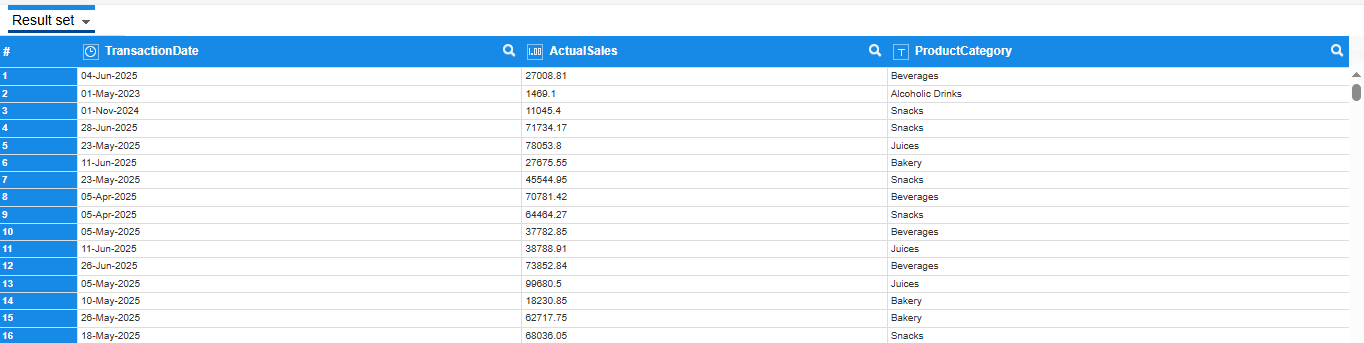
1.1 Sales Dataset
Creating a Budget Dataset - The table displays Budget data by Month date and product category.
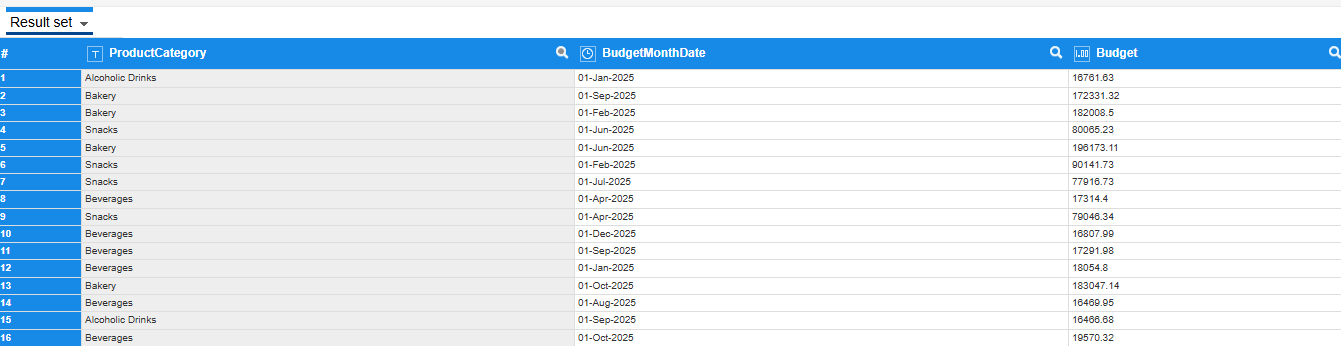
1.2 Budget Dataset
Adding the Budget dataset in SSDP for appending with the Sales dataset
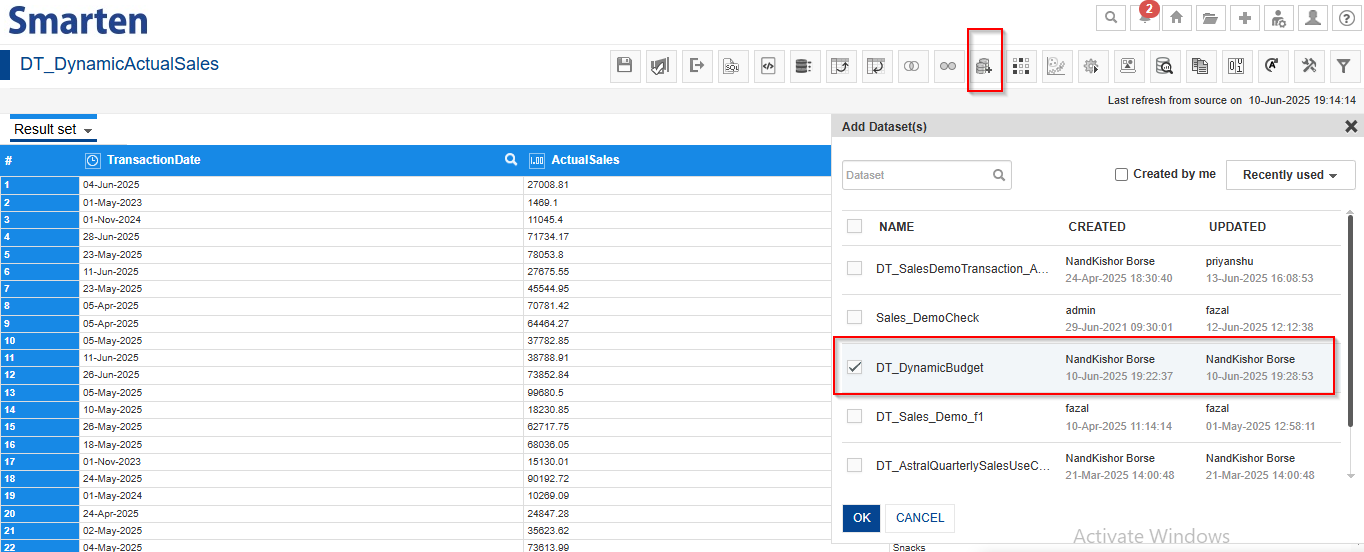
1.3 Adding Budget Dataset
Appending Budget Data to Sales Dataset - We are appending the Budget dataset with the Sales dataset instead of joining because joining causes budget values to repeat for the same month across multiple transactions, resulting in incorrect totals. Although this can be fixed using a distinct operation at the front-end, it may increase object load time. To avoid this, we append the datasets by mapping Product Category to Product Category and Transaction Date to Budget Month Date, and include Budget and Sales columns separately.
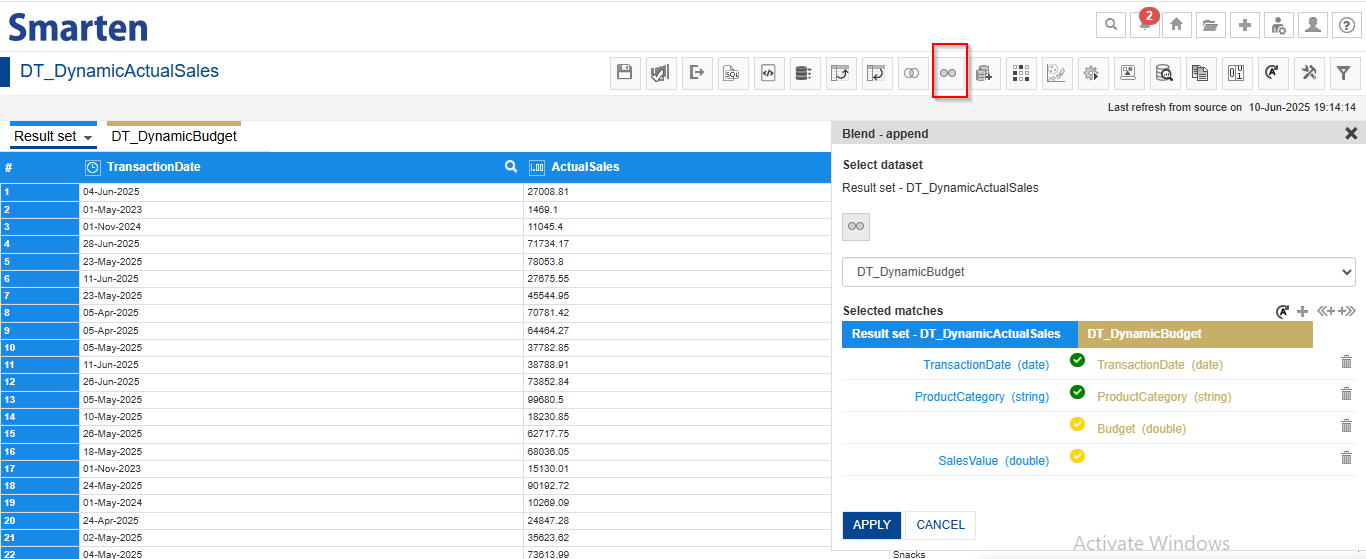
1.4 Appending Budget Dataset
2. Sales Dataset After Append
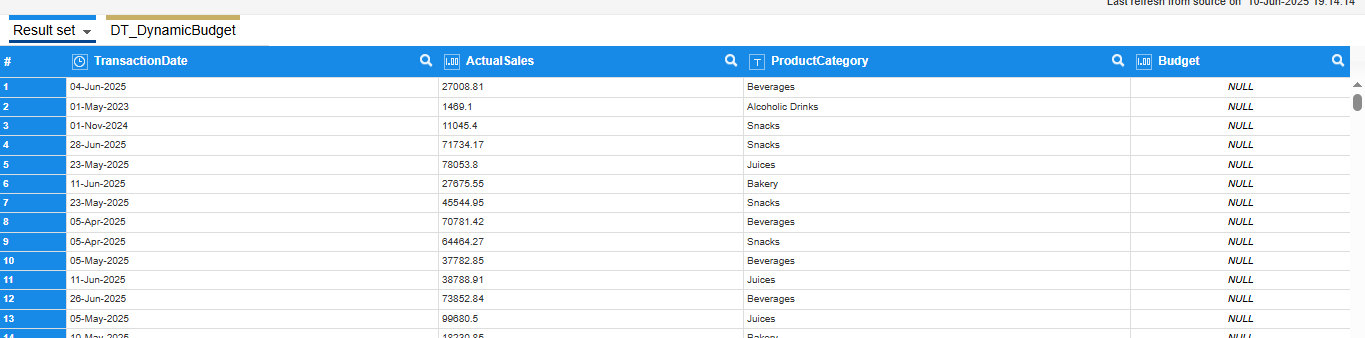
1.5 Sales Dataset After Append
Adding the Custom Quarter Column -
We are adding the Quarter column because the report requires Sales, Budget Data, and Performance Metrics to be analyzed on a quarterly basis.
To achieve this, we derive the quarter (Q1, Q2, Q3, Q4) from the Transaction Date by creating a custom column using the "Quarter Name" option from the date column (Right-click → Add Column → Quarter Name).
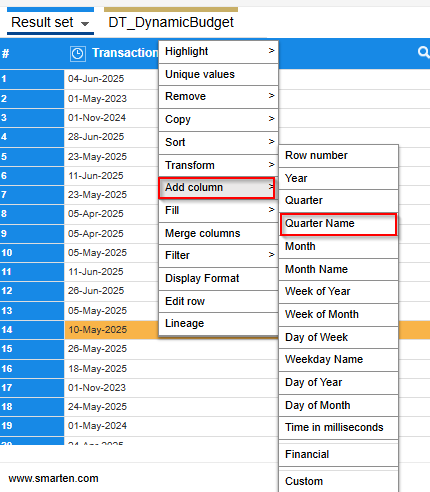
2.1 Adding Quarter Column
Dataset with Quarter Column Added
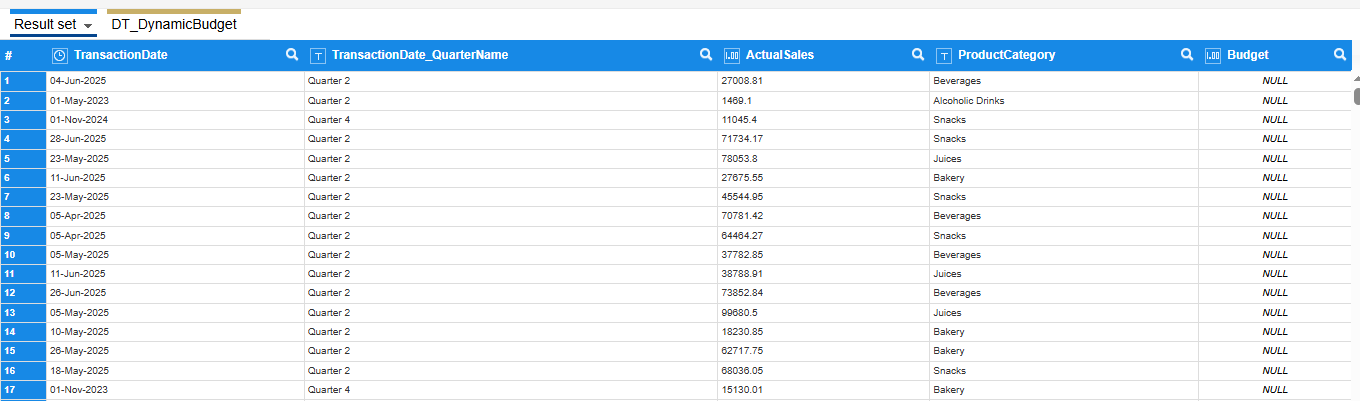
2.2 Dataset with Quarter Column Added
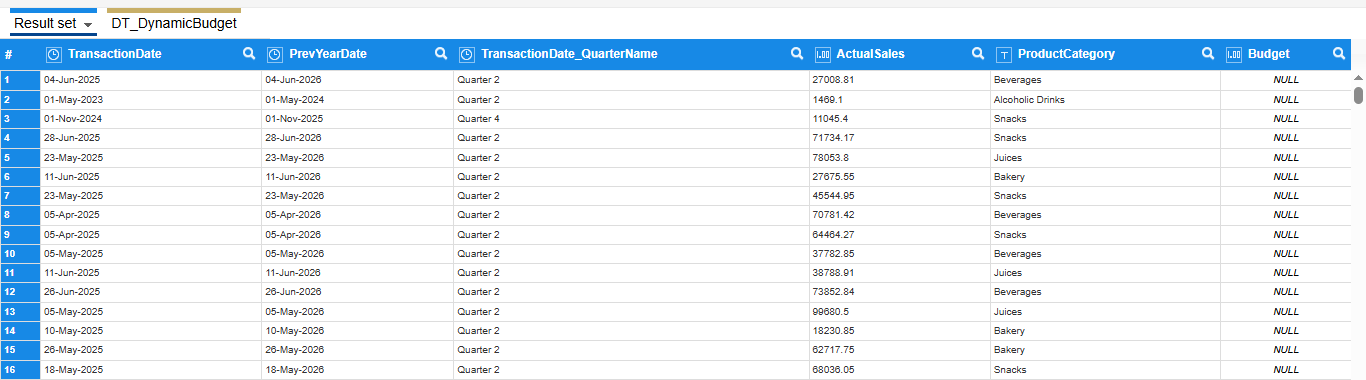
3. Adding the Custom Previous Year Column -
This column is required to fetch previous year data based on the selected date range.
Right-click on any column, select "Add Column", then choose the "Custom" option.
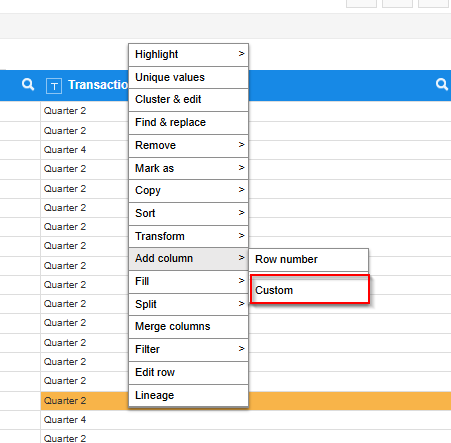
3.1 Adding Previous Year Column
The expression dateAdd("y", 1, TransactionDate) adds 1 year to the TransactionDate.
To get the Previous Year date, you should subtract 1 year instead:
3.2 Previous Year Column Expression
Final Dataset for Dynamic Sales vs. Budget Report
Final Dataset
Tabular Report :
4. Creating a Tabular Object
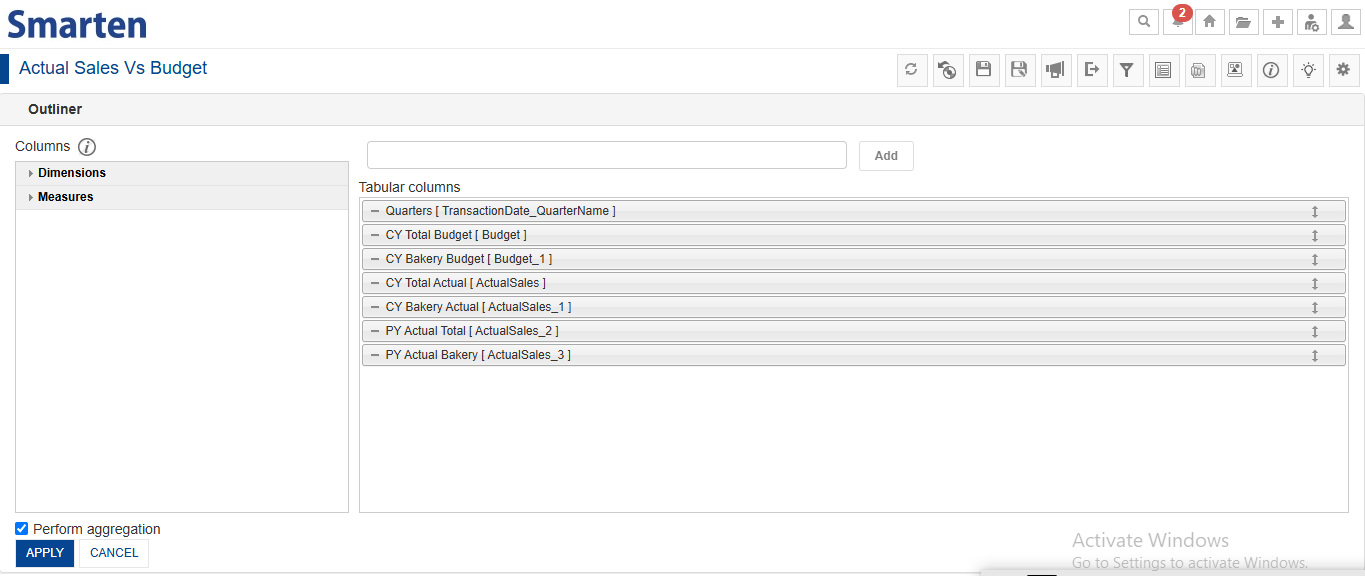
We are adding all required columns in the Outliner - Quarter, Budget (twice for Total and Bakery), and Sales (four times for CY and PY, both Total and Bakery) - and applying filters for each condition. We have also renamed the columns appropriately in the report to ensure clarity.
4.1 Outliner
This is a report without applying any filter conditions.
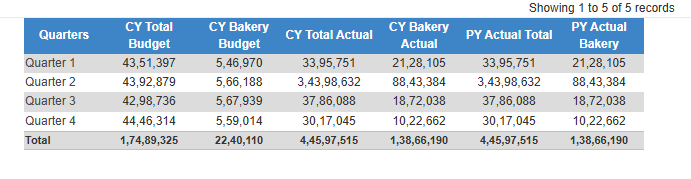
4.2 Tabular Report
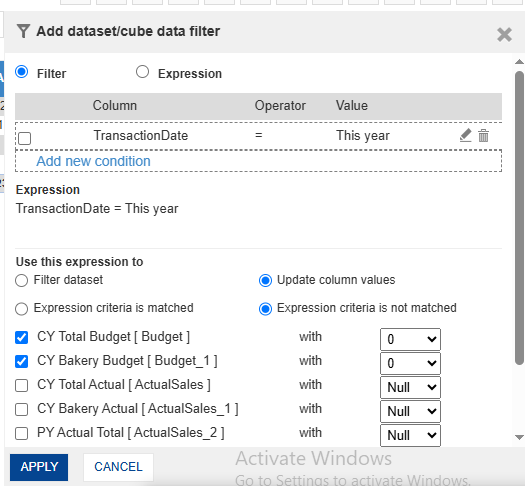
5. Applying Filters to the Bakery Column
We are applying filters because they will filter the data based on the specified conditions.
We are opening the filter window, creating a dataset filter with a condition on the Transaction Date for the current year, and setting up an additional filter for the Bakery category. This filter is applied to the CY Bakery Budget, CY Bakery Sales, and PY Bakery Sales columns. If the filter conditions are not met, we set CY Total Budget and CY Bakery Budget to 0; otherwise, we display the dataset values.
5.1 Current Year Filter
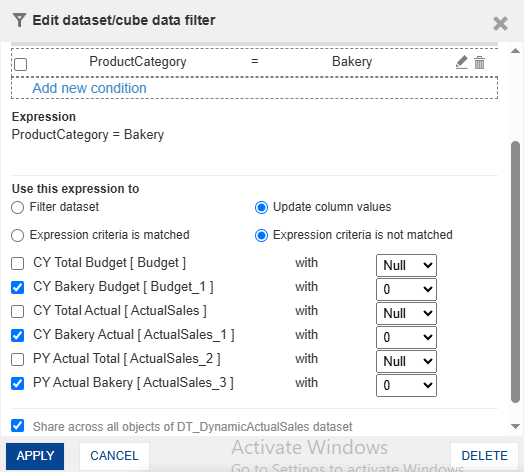
5.2 Bakery Category Filter
Creating Global Variables for Dynamic Date Range for Total and Bakery sales
We are creating the From Date and To Date global variables because we need to pass a date range and filter the data accordingly. So, we first need to create global variables to use them in the date range filter.
We are opening the Manage Global Variable window, clicking on “Create New,” and defining two variables - From Date and To Date - to filter the Transaction Date for Sales reporting.
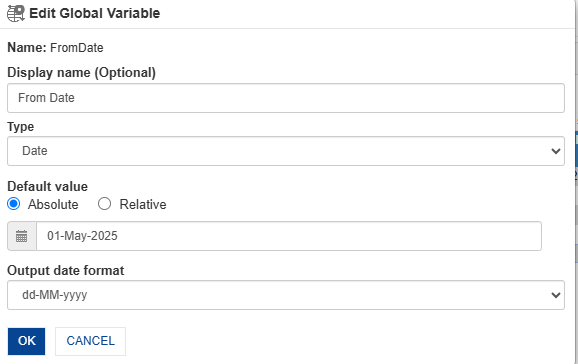
5.3 Creating From Date Global variable
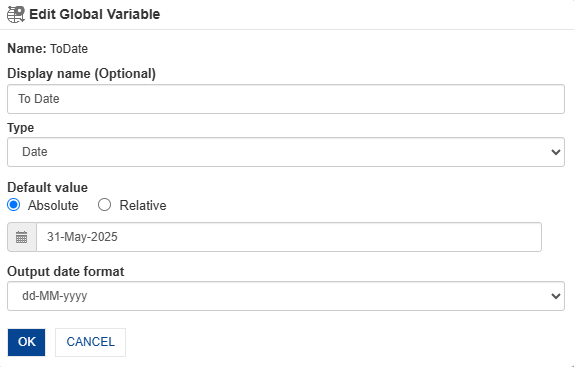
5.4 Creating To Date Global variable
Dynamic Date Range Filtering for CY Total and Bakery Sales
Here we are creating the date range filter for the given Transaction Date range, which we are referring to as the Current Year.
We are applying the passed date range filter to CY Total Sales and CY Bakery Sales by creating a dataset filter using the global From Date and To Date variables on the Transaction Date column, and applying it to both columns—showing the values if the condition matches, otherwise setting them to 0.
5.5 Passing the Date Range
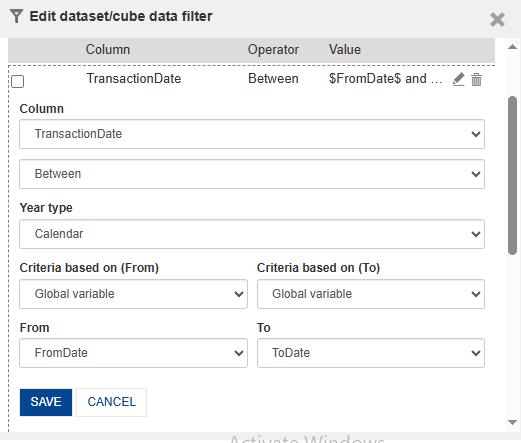
5.6 Adding Condition for Current Year
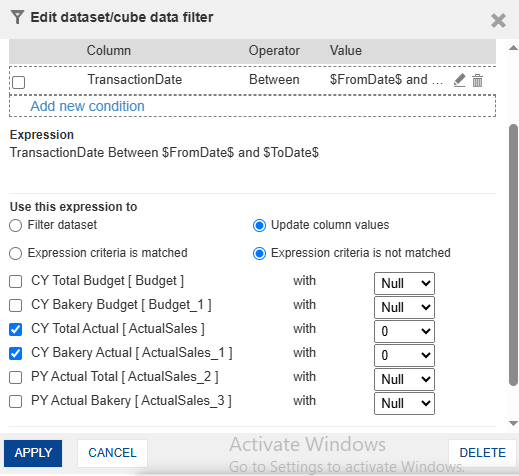
5.7 Creating a Transaction Date filter for Date Range
Dynamic Date Range Filtering for PY Total and Bakery Sales
Here we are applying the filter on the Previous Year date column to filter out the previous year values for performance comparison.
We are applying the passed date range filter to PY Total Sales and PY Bakery Sales by creating a dataset filter using the global From Date and To Date variables on the Previous Year Date column, and applying it to both columns — displaying values if the condition matches, otherwise setting them to 0.
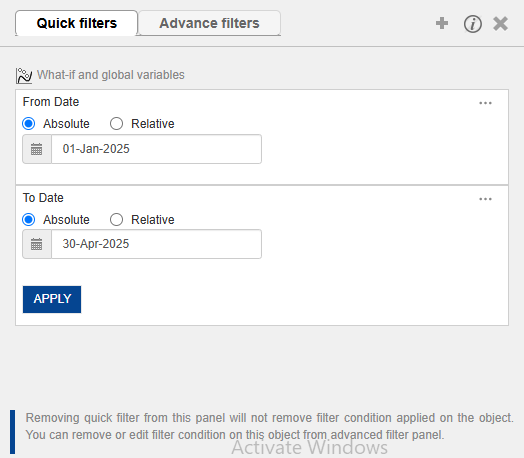
5.8 Passing the Date Range
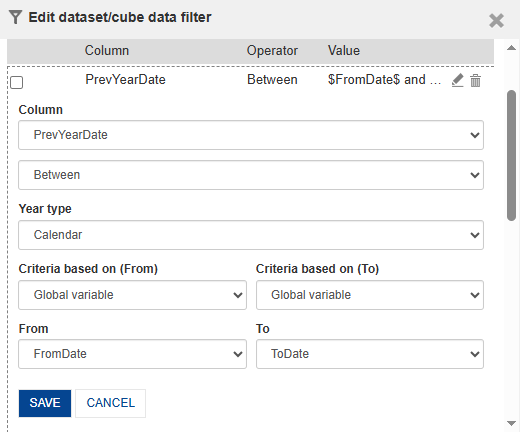
5.9 Adding Condition for Previous Year
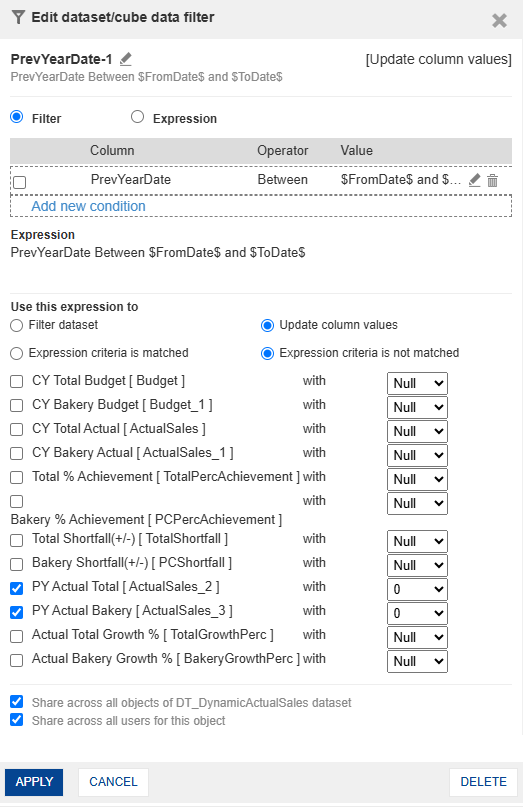
5.10 Creating a Previous Year Date filter for Date Range
6. Creating Custom Measure (UDDC) Columns
We are creating the performance metric columns, which are necessary to assess performance and support decision-making.
We are going to the Manage Custom Measure (UDDC) window and creating Calculated Fields by clicking “Add,” providing a name, selecting the base column, and entering the required calculation expression.
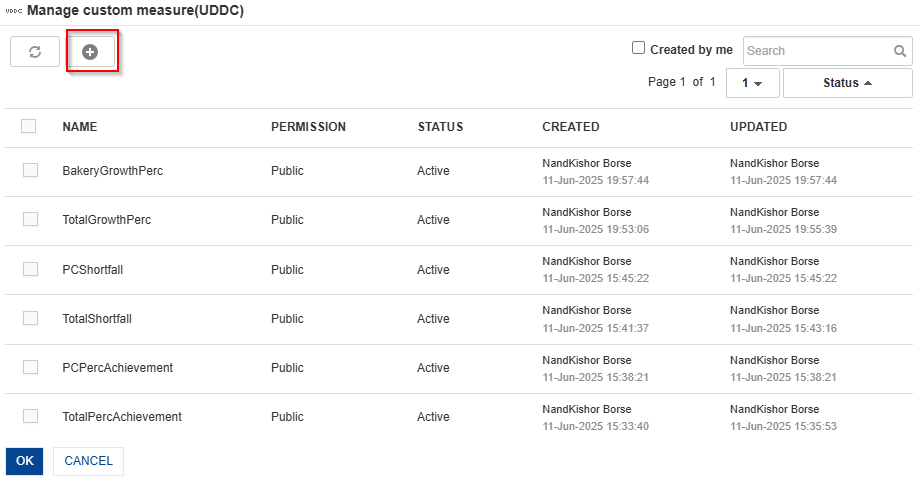
6.1 Manage Custom Measure (UDDC) Window
Use the following expressions in Manage Custom Measure (UDDC) by creating new calculated fields with the given column names, then add each one to the Outliner:
- Total % Achievement
( [CY Total Sales] / [CY Total Budget] ) * 100
- Bakery % Achievement
( [CY Bakery Sales] / [CY Bakery Budget] ) * 100
- Total Shortfall(+/-)
[CY Total Sales] - [CY Total Budget]
- Bakery Shortfall(+/-)
[CY Bakery Sales] - [CY Bakery Budget]
- Total Growth %
( [CY Total Sales] - [PY Total Sales] ) / [PY Total Sales] * 100
- Bakery Growth %
( [CY Bakery Sales] - [PY Bakery Sales] ) / [PY Bakery Sales] * 100
Expected Output :
We have got the expected output; all columns with correct values are shown below.

7.1 Budget vs Sales Report
Conclusion:
This use case demonstrates how a dynamic, date-driven reporting solution can provide meaningful insights into sales performance by enabling flexible comparisons between actual sales and budgeted targets. By supporting user-defined date ranges and automatically deriving the corresponding previous-year period, the report delivers a consistent framework for year-over-year performance analysis.
The solution combines dynamic filtering, quarter-wise aggregation, and calculated performance metrics such as Achievement %, Shortfall, and Growth % to provide a comprehensive view of business performance. It enables users to:
- Evaluate sales performance against budget targets across any selected time period.
- Compare current-year performance with equivalent periods from the previous year.
- Analyze the performance of specific product categories, such as Bakery, alongside overall business results.
- Identify trends, performance gaps, and growth opportunities through a structured quarter-wise view.
With its flexible design and reusable framework, the report can be adapted to a variety of business scenarios, including performance reviews, budget tracking, sales analysis, and periodic management reporting. The integration of dynamic filters and calculated measures ensures that the report remains responsive to user selections and consistently delivers relevant, actionable insights.
Was this article helpful?
That’s Great!
Thank you for your feedback
Sorry! We couldn't be helpful
Thank you for your feedback
Feedback sent
We appreciate your effort and will try to fix the article