
Registration Process:
SmartenApps for Tally - Registration Process
This Knowledge Article provides detailed instructions to register for SmartenApps for Tally as an Administrator (First User) and as an Additional User for the organization. Install SmartenApps for Tally and enjoy all the benefits of analytics in moments with seamless login and registration.It only takes a minute to get started. If you have questions, please do not hesitate to contact our Support Team.
What Tally Versions and Devices Does SmartenApps for Tally Support?
- Compatible Mobile OS Versions for Mobile App Access
- Apple iOS - iOS 8.x and above
- Android - Android 6.x and above
- Compatible OS for Desktop App
- Windows 10 and all future versions
- Windows 10 and all future versions
- Compatible Tally Versions
- Tally ERP 9 - release 5 and above
- Tally Prime – You need to enable connectivity by going into Exchange -> Data Synchronisation – Client / Server Configuration
Registration from Mobile App (For First User in the Organisation):
- Step 1 : Download the Mobile App from App Store.
- To download the Mobile App – Search for ‘SmartenApps for Tally Mobile App’ on Google Playstore or Apple Store.
- URL for Android Version: Google Store: SmartenApps For Tally
- URL for iOS Version: Apple Store: SmartenApps For Tally
- Step 2: Open the SmartenApps for Tally Mobile App
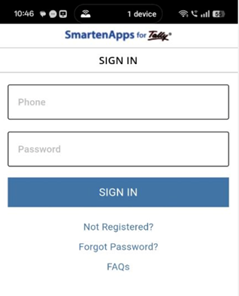
- Step 3: Click on the “Not Registered?” link on Sign In Page
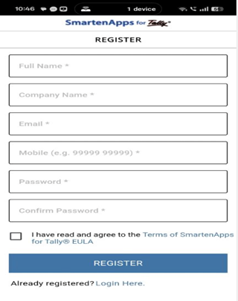
- Step 4: Register from Mobile App (if you are a first user of your organisation, you will be considered an admin for your organisation)
- Step 5: Verify your account with OTP verification on your registered mobile phone. OTP is valid for 24 hours
- Step 6: Start using SmartenApps for Tally from the Mobile App
How to Register as an Additional User :
Additional users can register from Mobile App
Registration from Mobile App (For Additional Users in Your Organisation)
- Step 1: Download the Mobile App from App Store.
- To download the Mobile App – Search for ‘SmartenApps for Tally Mobile App’ on Google Playstore or Apple Store.
- URL for Android Version: Google Store: SmartenApps For Tally
- URL for iOS Version: Apple Store: SmartenApps For Tally
- Step 2: Register from Mobile App (if you are the first user of your organisation, you are considered an Admin for your organisation)
- Step 3: Verify your account with OTP verification on your registered mobile phone. OTP is valid for 24 hours
- Step 4: Ask the organization Administrator (the first SmartenApps for Tally user in your organization) to add access for you
- Step 5: Your organisation admin can go to User Management option from the Desktop App, and Click on Add Users option. The system will ask the Admin to enter verification code for the new user.

- Step 6: Admin can enter the verification OTP code that this additional user received during the verification process in step 3 above.

- Step 7: Upon successful verification from Desktop App, the new user will be added in the Desktop App, and will be able to access the system via Mobile App
Remember that the first person to register for SmartenApps for Tally as a user becomes the Administrator (First User) and all other users will register according to the directions provided in the section above, ‘How to Register as an Additional User’. If you have any questions, please contact our Support Team if you need assistance.
Was this article helpful?
That’s Great!
Thank you for your feedback
Sorry! We couldn't be helpful
Thank you for your feedback
Feedback sent
We appreciate your effort and will try to fix the article